How to Make YouTube Videos Interactive: 2 Ways
Use YouTube Studio quizzes on videos you manage, or add AI-drafted questions, polls, feedback, and more to a supported YouTube video with Interakly.
There are now two practical ways to make a YouTube video interactive. If you upload or manage the video, YouTube Studio on the web has a native Quiz element. If you want richer interactions, AI-assisted drafting, or a separate experience around a supported video you do not manage, Interakly gives you a different route.
The right choice depends less on who hosts the video and more on what you control. YouTube's quiz tool belongs to the channel's editing workflow. Interakly creates an interactive layer around an embeddable source, then gives that new experience its own link, settings, and response data.
The short answer: two ways to make a YouTube video interactive
Built into YouTube
YouTube Studio Quiz
On the web, add a timestamped single-answer question while uploading a video or editing one your channel manages.
- Best for
- A small number of native questions that should live directly on YouTube.
- Know before choosing
- You need video-management access, the format is intentionally narrow, and a saved quiz must be deleted and recreated to change it.
Separate interactive experience
Interakly
Place compatible questions, games, polls, feedback, and content moments around a supported YouTube embed.
- Best for
- Teaching, training, audience participation, AI-assisted drafting, and videos you can embed but do not manage.
- Know before choosing
- The finished experience is shared through Interakly, and technical embeddability is not permission to reuse a video.
Method 1: add a native quiz in YouTube Studio
YouTube's current help documentation describes a native Quiz option in YouTube Studio on the web for videos a creator uploads or manages. In the upload flow, open Video elements and choose Add next to Quiz. For an existing managed video, open its details or Editor in YouTube Studio.
According to YouTube's official quiz instructions, a video can contain up to 10 quizzes. Each quiz has one question, up to four answer options, one correct answer, and an optional explanation. You choose the timestamp, save the quiz, and repeat where needed.
Open a video you manage
Use the upload workflow, video details, or Editor in YouTube Studio.
Add the Quiz element
Choose a timestamp, write one question, and add up to four answer options.
Mark one answer as correct
Optionally add an explanation for the correct answer.
Save and check the video
YouTube supports up to 10 quizzes. To change a saved quiz, delete it and create it again.
Method 2: make a YouTube video interactive with Interakly
Interakly creates a separate experience around a supported YouTube video. The original upload stays on YouTube and is not edited or re-hosted. In learner playback, questions and cards appear as an interactive overlay on top of the embedded YouTube player. A timeline tracks the authored moments, and the Interakly project stores its own settings and learner responses.
This difference is especially useful when you can watch and embed a public educational video but cannot open its YouTube Studio editor. You can add teaching moments without claiming control of the original upload, provided that the video allows embedding and your use respects the creator's rights and applicable policies.
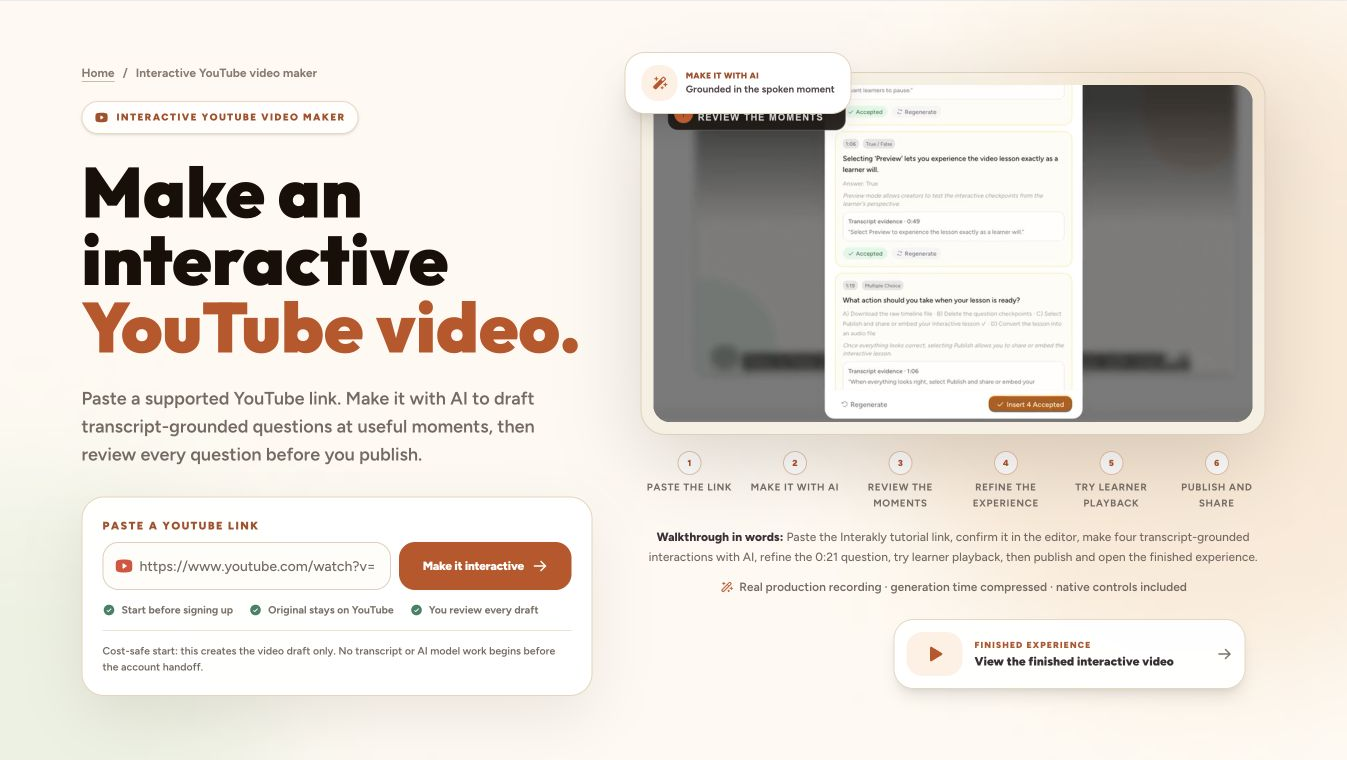
Step-by-step Interakly walkthrough
1. Paste the YouTube URL
Open the interactive YouTube video maker and paste a supported YouTube URL. Interakly resolves the source before the authoring flow continues. A public or unlisted setting does not guarantee success: the video must also be playable through YouTube's embedded player.
You can start the URL flow before signing in. To protect generation costs, that signed-out step creates only the private draft. Transcript retrieval and AI model work begin after the account handoff, when the creator is ready to complete the project.
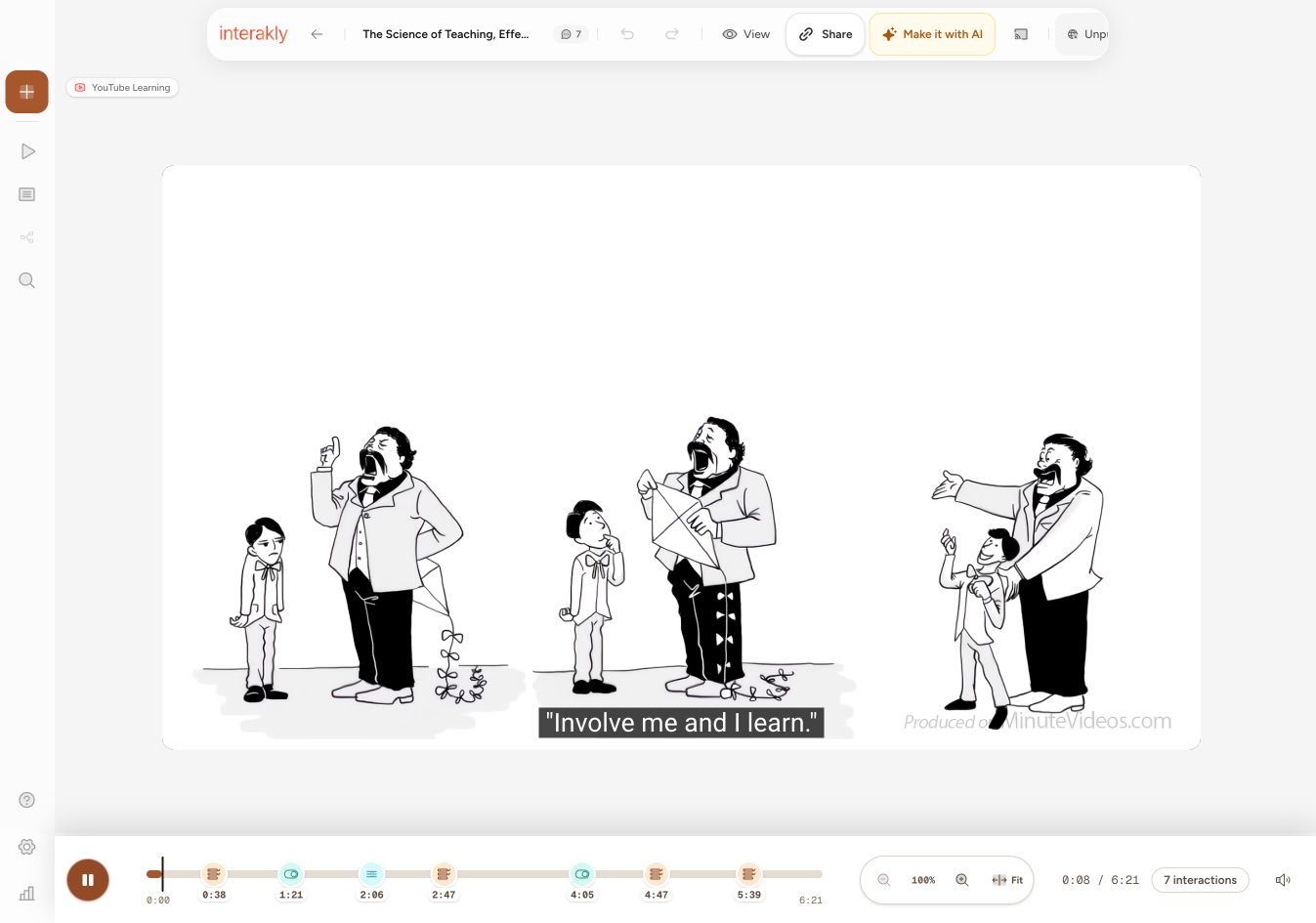
2. Check the video and timeline
The editor shows the resolved YouTube video, its real playback frame, and one timeline for every interaction. Play or scrub to the moment immediately after the idea a learner should process. This keeps a question close to its evidence without interrupting the explanation halfway through.
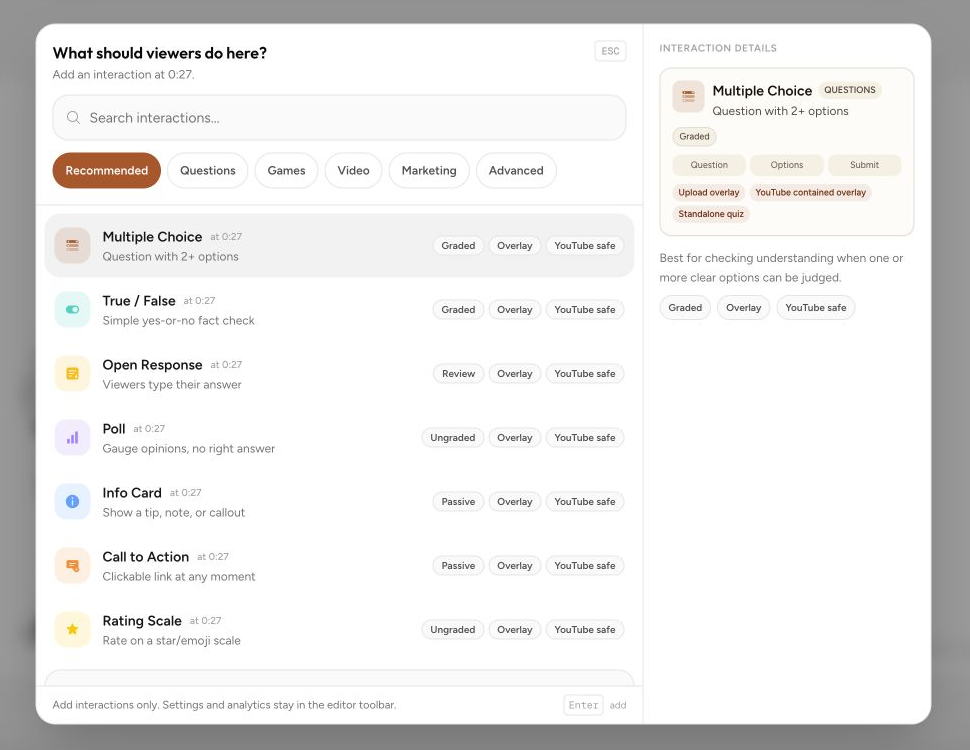
3. Choose manual authoring or Make it with AI
For complete control, select Add interaction and choose a compatible format. The picker groups quick questions, games, video structure, marketing moments, and advanced responses, while marking spatial tools that require an uploaded video.
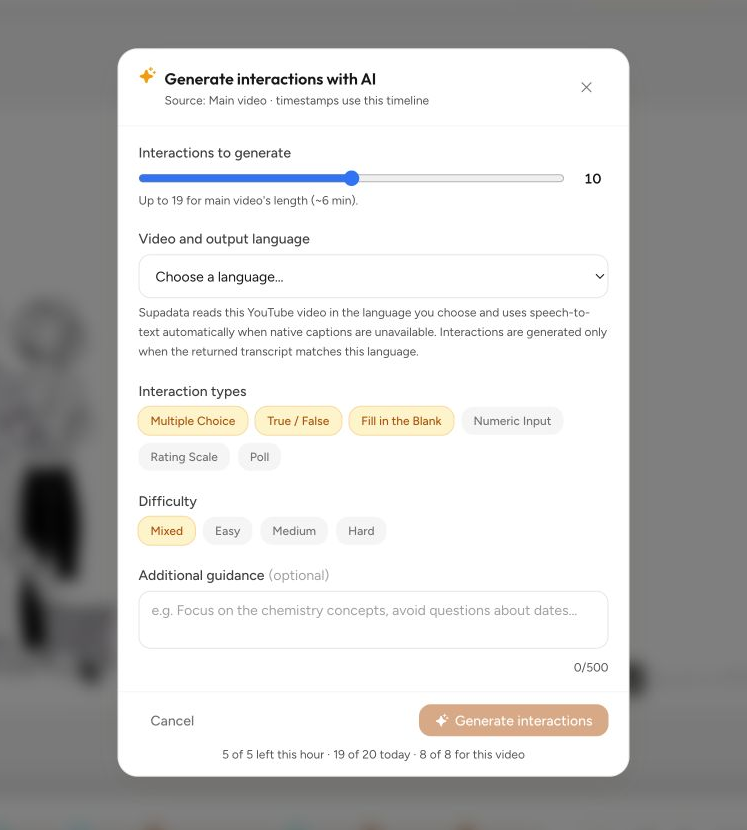
For a faster first draft, open Make it with AI. Choose the video and output language, number of interactions, allowed response types, and difficulty. Optional guidance can focus the draft on a learning objective or audience.
4. Review transcript-grounded candidates
AI output is a draft, not an automatic publication. Review the transcript evidence, timestamp, prompt, answer, and feedback for each candidate. Accept the useful moments, skip weak ones, and regenerate only when another draft would solve a specific problem.
After insertion, every accepted interaction becomes an ordinary, editable timeline item. This is the important handoff: the model can accelerate drafting, but the creator remains responsible for accuracy, pacing, and what learners will experience.
How transcript-backed quiz drafting works
See the readiness checks, evidence boundary, review criteria, recovery states, and limits behind Make it with AI.
5. Refine the question in its real learner composition
Open an inserted interaction and edit the wording, choices, correct answer, and feedback. The creator preview shows how the pause stage will look over the video, so you can catch answer wrapping, crowded copy, or a card that hides essential visual evidence.
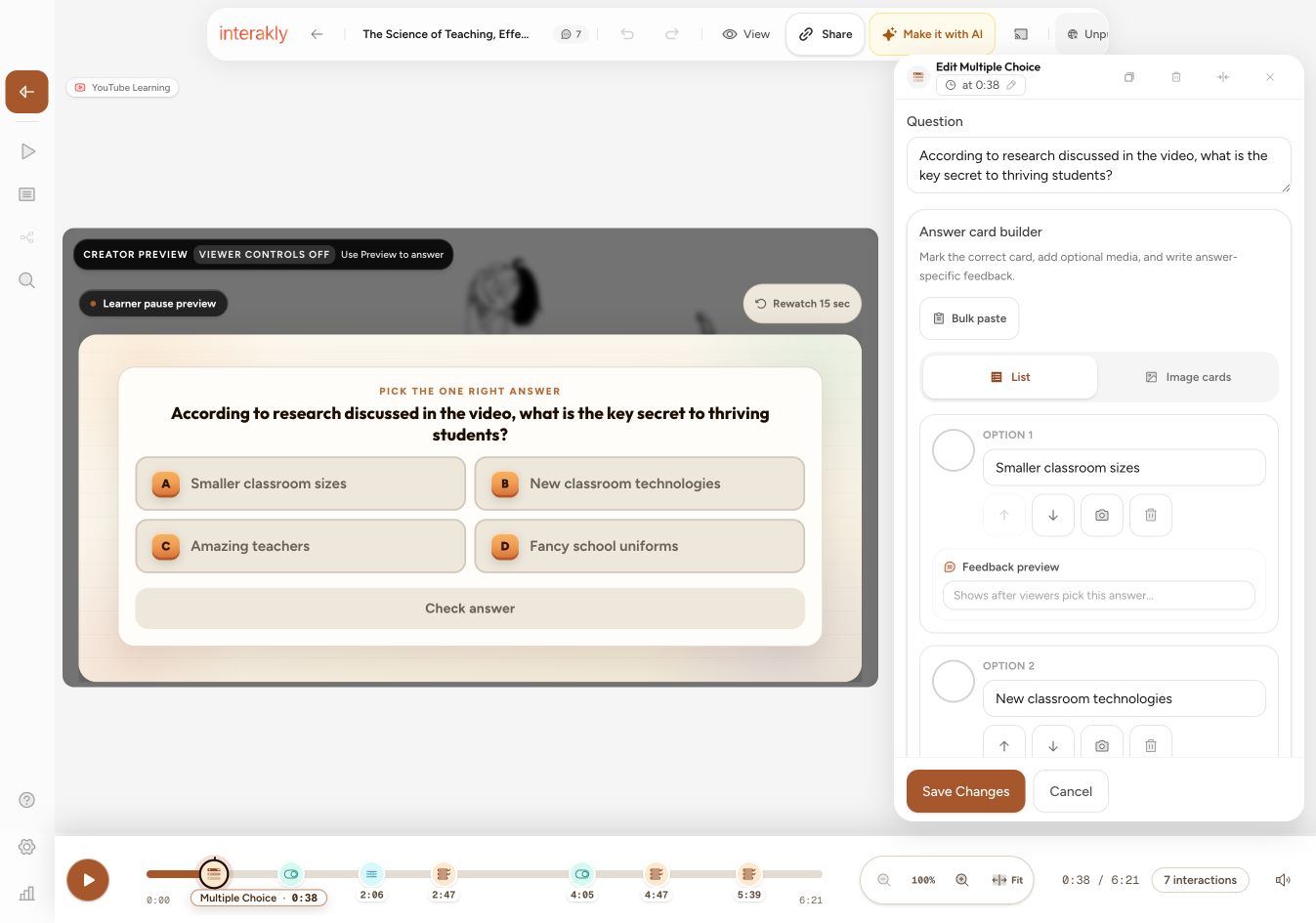
A learner can use the built-in 15-second rewatch control when the preceding explanation needs another look. Test that path as well as the first attempt, correct feedback, incorrect feedback, and any retake behavior you enable.
6. Preview, publish, and share
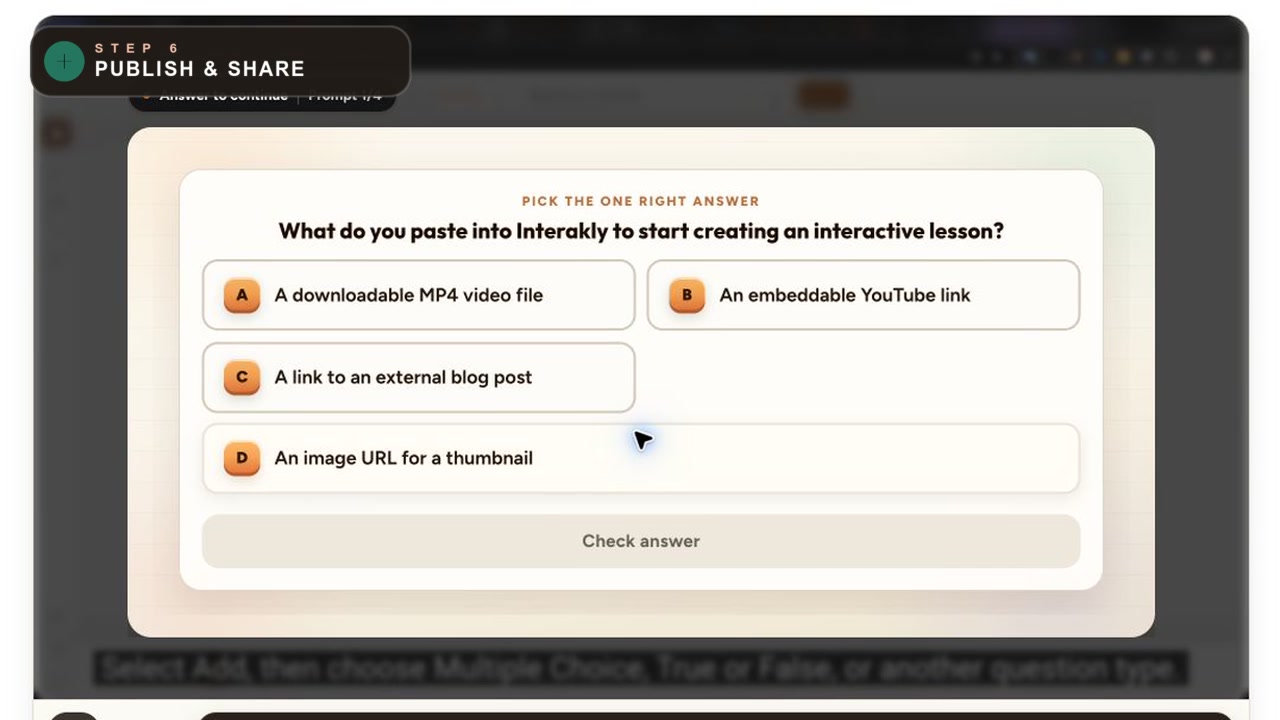
Use Preview to answer the interactions as a learner. Check desktop and phone layouts, the pause timing, feedback, rewatch behavior, and access settings. Publish only after the complete sequence works. The finished experience can be shared through its Interakly viewer link or embedded where the destination supports the generated embed code.
Choose interactions that fit the learning goal
More formats do not automatically make a better lesson. Start with the learner action you need, then choose the lightest interaction that can collect it.
- Questions: use multiple choice, true or false, numeric input, or fill in the blank for a check with a defined answer.
- Explanation and reflection: use open response or evidence-focused activities when the learner needs to articulate reasoning.
- Participation: use a poll or rating scale when the purpose is opinion, confidence, or feedback rather than correctness.
- Practice and energy: use a game format when rehearsal benefits from a more active interaction and the mechanics fit the content.
- Context: use info cards, chapters, comments, or timed reveals to clarify the video without forcing an answer.
For the complete current inventory and source limits, use the dedicated guide below instead of relying on a static list in this walkthrough.
Compare all YouTube-compatible interaction types
Find the current questions, responses, games, and content moments, plus the uploaded-video-only boundary.
Which method should you use?
- Choose YouTube Studio when you manage the upload, one correct answer is enough, and the quiz should live natively on YouTube.
- Choose Interakly when you need more response formats, games, AI-assisted drafting, creator review, access settings, or a separate learning link.
- Choose Interakly when the source is a supported, embeddable YouTube video that you can use but do not manage in YouTube Studio.
- Upload the video to Interakly when you own the media and need spatial hotspots, an owned-media workspace, or the complete segment-based branching system.
Using a YouTube video you did not upload
This is the most important difference between the two methods. Native YouTube quizzes are authoring elements, so an ordinary viewer cannot add one to a video simply because they can watch it. Interakly does not ask for control of the source upload. It plays the supported embed and publishes a separate interactive experience around it.
That technical ability does not create a license. Embeddability is not permission, and it does not override copyright, YouTube's terms, a creator's stated conditions, or school and organizational rules. Confirm that your intended educational, training, or commercial use is allowed before publishing or distributing the Interakly experience.
Common problems and fixes
The YouTube URL is valid, but Interakly cannot use it
Check whether the video is private, removed, age or region restricted, or blocked from embedding. A normal YouTube watch page can work while the embedded player is unavailable. Choose another source or ask the uploader to allow embedding when appropriate.
Make it with AI cannot draft questions yet
Confirm the spoken language and wait for transcript readiness. A usable transcript, provider availability, and quota are required. If the source has no usable transcript, continue manually rather than treating unsupported model output as evidence from the video.
The question covers the visual needed to answer
Move the timestamp until the visual has finished, use the preview to inspect the paused frame, or rewrite the question so the hidden region is not required. The 15-second rewatch control helps memory, but it does not repair a prompt that depends on an obscured frame.
A saved native YouTube quiz needs editing
YouTube's current instructions say saved quizzes cannot be edited. Delete the quiz and recreate it at the intended timestamp, then check the published result again.
The desktop version works, but mobile feels crowded
Shorten the prompt and answer choices, then use Interakly's phone preview. Do not solve crowded copy by shrinking text or depending on an internally scrolling question card. The complete interaction should fit the maintained responsive stage.
FAQ
Does YouTube let you add quizzes to videos?
Yes. YouTube's current help documentation describes up to 10 timestamped quizzes in YouTube Studio on the web for videos you upload or manage. Each quiz can have up to four answer options, one correct answer, and an optional explanation.
Can I add a native YouTube quiz to a video I do not own?
Not as an ordinary viewer. YouTube's native Quiz element is part of YouTube Studio, so you need permission to manage the video or channel. Interakly instead creates a separate interactive experience around a supported, embeddable YouTube video.
Can I make any YouTube video interactive with Interakly?
No. The video must be a supported public or unlisted source that YouTube permits to play in an embedded player. Private, removed, restricted, or embedding-disabled videos may not work.
Will Interakly change or re-host the YouTube video?
No. YouTube continues to host and play the source video. Interakly stores a separate timeline of interactions, settings, and learner responses around the embedded player.
Can Interakly draft the questions with AI?
A signed-in owner can use Make it with AI when Interakly can retrieve usable transcript evidence and the required services and quota are available. The creator reviews every proposed interaction before inserting it.
Do learners need an Interakly account?
A published experience can be open to learners without an account. Creators can also choose access or identity requirements for a particular project.
Can I add hotspots or full branching scenarios to YouTube?
No. Hotspots and other spatial interactions need an Interakly-owned uploaded-video surface. The complete segment-based branching workflow is also designed for uploaded videos.
Can I embed the finished interactive video?
Yes, when the destination supports Interakly's generated embed workflow. You can also share the published Interakly viewer link directly.
Sources
Keep building
Add a quiz to a YouTube video
Follow the focused manual question workflow, from timestamp choice to learner testing.
Choose better interaction timestamps
Place questions after complete ideas, protect important frames, and create an intentional learning rhythm.
Review interactive YouTube video responses
Interpret sessions, completion, scores, and question distributions with honest denominators.
Make a supported YouTube video interactive
Paste the source URL, choose manual authoring or Make it with AI, review every interaction, and publish when the learner experience is ready.
Paste a YouTube link