How to Add a Quiz to a YouTube Video (Step-by-Step)
Learn how to add a quiz to a YouTube video with Interakly. Paste a YouTube URL, add timestamped questions, preview the learner experience, publish, share, and track responses.
A YouTube video is easy to assign, but it is hard to know what viewers understood. They can watch passively, skip around, or finish the video without ever showing you whether the key idea landed.
The simple fix is to turn the video into an interactive YouTube quiz. With Interakly, you paste a YouTube URL, add a title, place questions at specific timestamps, and publish a shareable interactive video. Viewers watch the YouTube video in its embedded player. When a quiz becomes due, playback pauses and Interakly overlays the question on the video. The response is recorded before the experience continues.
Can you add a quiz to a YouTube video?
Yes. The best approach is not to modify the original video file. Instead, create an interactive version of the YouTube video and add timestamped questions where they help most. That gives you the practical benefits of a video quiz without needing video editing software.
Paste the YouTube link
Start from the video URL and keep the original YouTube video intact.
Add quiz questions
Place multiple-choice, true/false, free-text, poll, or informational prompts at useful moments.
Track responses
See completion, answers, and performance after viewers take the interactive video.
Generate a YouTube quiz draft from the transcript
Use the signed-in, transcript-dependent workflow, then review and preview every candidate before publishing.
Interpret YouTube quiz responses responsibly
Read recorded responses, correct rates, completion, and distributions without treating them as proof of learning.
What you need
To make a YouTube video quiz, you need:
- A YouTube video URL.
- A short title for the interactive video.
- One or more moments where a question should appear.
- A few answer choices and optional feedback for each answer.
You can start from the homepage without a long setup flow. If you want the interactive video permanently tied to your account, sign in or claim it later.
Step 1: Paste the YouTube URL
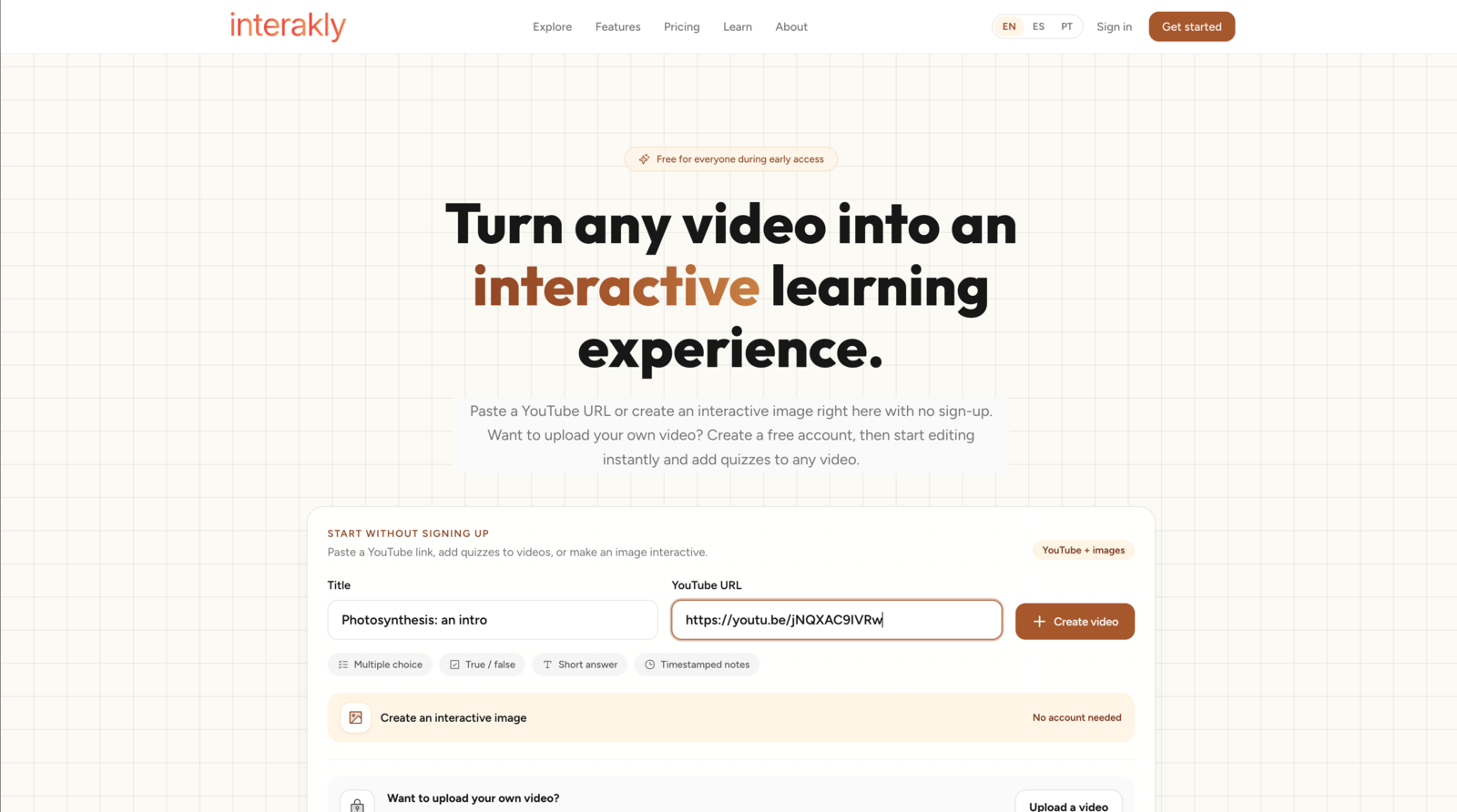
Open Interakly and choose the YouTube option. Add a clear title, paste the YouTube URL, then create the video. The title should describe what viewers are learning or checking, not just copy the YouTube title.
Step 2: Pick the moment for your quiz
In the editor, scrub to the moment where the question should appear. The best timestamps are usually right after an important claim, a worked example, a definition, or a visual detail the viewer needs to notice.
Play or scrub the video
Move to the exact moment where you want the viewer to stop and think.
Choose the interaction type
Use multiple choice for quick checks, true/false for misconceptions, and short answer when recall matters.
Drop the question at the current time
The marker appears on the timeline so you can revisit or adjust it later.
Step 3: Add a multiple-choice question
Multiple choice is the fastest way to make a YouTube video interactive. Write a focused question, add two to five answer choices, and mark the correct answer. Keep the question short enough that it can be read while the viewer still remembers the video moment.
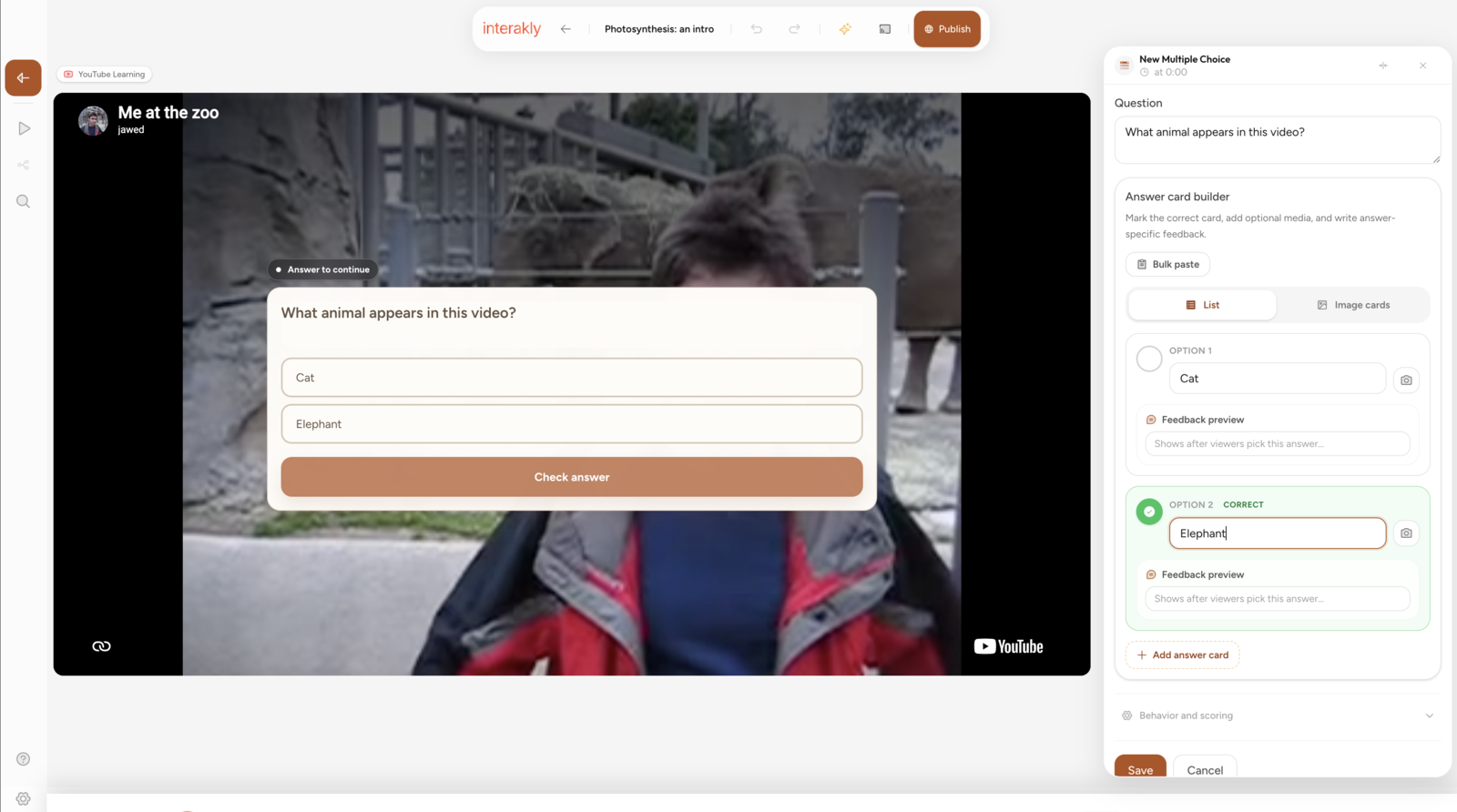
A strong YouTube quiz question usually asks one thing. Avoid asking two ideas at once, and avoid answer choices that are different lengths just because one is correct. If every option looks plausible, the quiz feels like a check for understanding rather than a guessing game.
Step 4: Add feedback and scoring
The best video quizzes teach after the answer. Add short feedback that explains why the correct choice is correct, or why a common wrong answer is tempting. Interakly can also score graded questions, so you can use the same video for practice, review, or a lightweight assessment.
Mark the correct answer
Choose the answer that should count as correct for scoring and completion.
Add answer feedback
Give viewers a quick explanation immediately after they respond.
Preview before publishing
Check the question over the YouTube player exactly as viewers will see it.
Step 5: Preview the learner experience
Preview matters. A question that looks fine in the editor can still feel too long, appear too soon, cover an important visual, or interrupt the flow awkwardly. Open the preview, play through the video, and answer each prompt like a viewer.
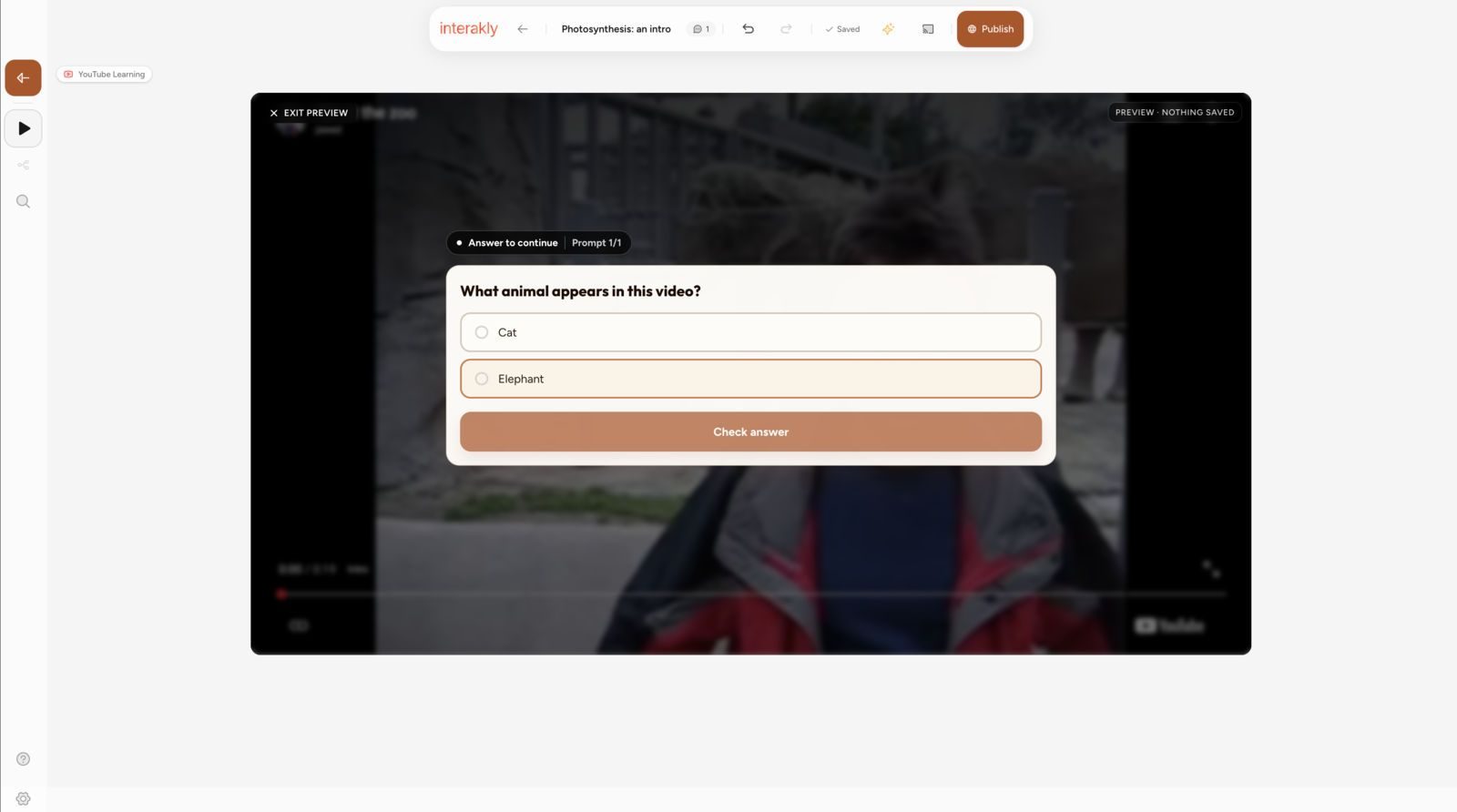
Check the small-screen experience too. Good answer choices should wrap cleanly, images should not crop important details, and the quiz card should not hide the very thing the viewer needs to inspect.
Step 6: Publish and share
When the quiz feels right, publish it. You can share the interactive video link directly, embed it on a website, or place it inside a course or LMS. Viewers do not need an account to watch and answer.
Share a link
Send the interactive YouTube quiz by email, chat, classroom stream, or course announcement.
Embed the player
Place the interactive video on a website or LMS page with the embed code.
Review results
Use response data to see which questions worked and where viewers struggled.
Best practices for YouTube video quizzes
- Ask early. Put the first question in the first few minutes so viewers learn that the video is active, not passive.
- Use fewer, better questions. Three thoughtful prompts are usually stronger than twelve interruptions.
- Match the question to the moment. Ask visual questions when the answer is on screen, and concept questions after the idea has been explained.
- Write useful wrong answers. Distractors should reflect real misconceptions, not obviously silly choices.
- Preview on mobile. Many viewers will answer on phones, so test long answer choices and image cards on a small screen.
- Use feedback as teaching. A one-sentence explanation after each answer can turn a quiz into a learning loop.
FAQ
Can I add a quiz to a YouTube video without editing the video file?
Yes. Interakly overlays timestamped questions on top of YouTube's embedded player, so you do not need to download, edit, or re-upload the video file.
Do viewers need an account to answer a YouTube video quiz?
Not for a publicly shared experience that does not require sign-in. Creators can also configure access or identity requirements when the lesson needs them.
Can I add more than multiple-choice questions?
Yes. Supported YouTube interactions include multiple choice, true/false, free text, polls, matching, ordering, info cards, timed calls to action, and more. Spatial activities such as hotspots require an uploaded video.
Will this change the original YouTube video?
No. The original YouTube video stays unchanged and continues to play through YouTube's embedded player. The questions, prompts, and response data belong to the separate Interakly experience.
Can I embed the interactive YouTube quiz on another site?
Yes. Once published, you can share a link or use the generated iframe on a website, LMS, or course page that permits embeds. Creator-configured domain restrictions still apply.
What interactions can you add to a YouTube video?
Compare all currently supported YouTube question, response, and content types before choosing the next activity.
How to make YouTube videos interactive
A broader guide to turning YouTube videos into interactive viewing experiences with prompts, notes, and calls to action.
Where to place interactions in a YouTube video
Choose quiz timestamps that follow the relevant evidence without interrupting the explanation.
How to add quizzes to video
Learn when to use different question types, how to write better prompts, and how to structure video assessments.
Ready to add a quiz to a YouTube video?
Paste a supported, embeddable YouTube URL, add your first timestamped question, and share the resulting interactive experience.
Start with a YouTube link