How to Make an Interactive Image (Step-by-Step)
Learn how to make an interactive image step by step. Add hotspots, questions, and a manual Narrative Tapestry, then preview, publish, share, or embed it.
You have a picture that says a lot. A labeled diagram, a map, a photo of a piece of equipment, a screenshot of a dashboard, a famous painting. You put it in front of learners, and most of them glance at it for a second and move on. The detail you cared about goes unnoticed, and you have no real idea what they looked at.
An interactive image fixes that. Instead of a flat picture, learners get markers they can click to explore, questions that ask them to point at the right part, and short explanations that appear exactly where they are looking. In this guide we will turn an ordinary picture into an interactive image, step by step. No design software or coding is required.
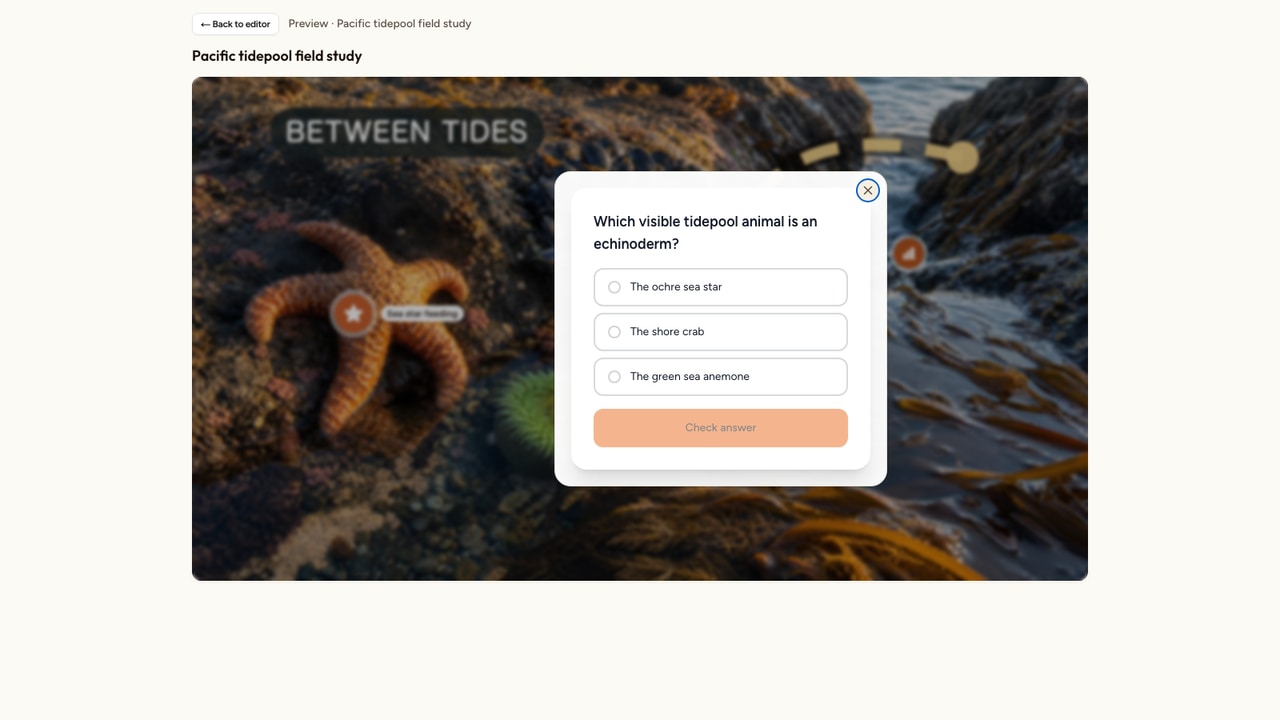
We will start with an image, let AI place a first round of information hotspots, add teaching and assessment elements by hand, preview the real learner experience, then publish and choose the right sharing method. Here is what the finished result looks like:
What you need to get started
You need surprisingly little:
- A free Interakly account.
- A picture, or a few words describing one if you want AI to draw it.
- A couple of ideas about what learners should notice.
You do not need photo editing software, a designer, or a single line of code. The one thing that helps most is choosing a picture with clear, distinct parts: a labeled diagram, a photo with several separate objects, a map, or a screenshot of an interface. The more separable the parts, the easier every step that follows becomes.
Step 1: Choose your starting source
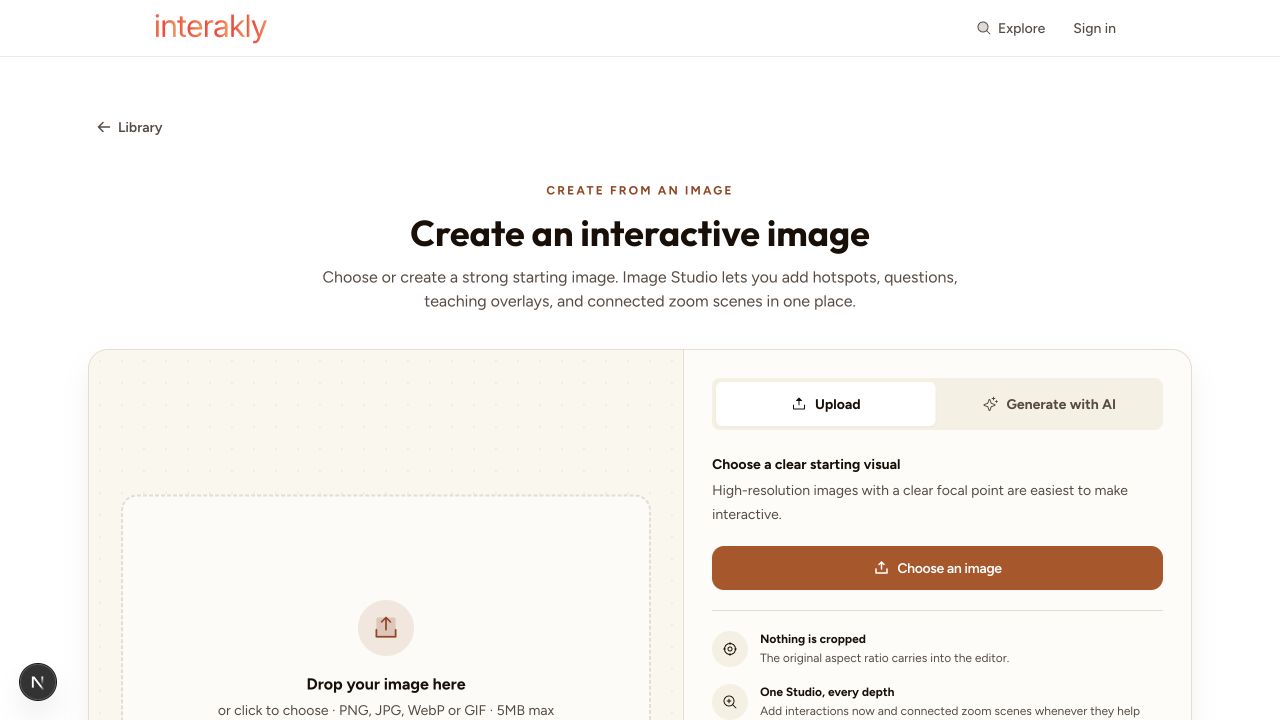
Sign in, open your library, and choose Create interactive image. Upload a starting image or generate one with AI. Both routes lead to the same Image Studio, where you can add hotspots, questions, teaching overlays, and connected zoom scenes without moving to a separate editor.
Upload
Drag and drop, paste, or click to upload a PNG, JPG, WebP, or GIF up to 5MB. Best for diagrams, photos, and screenshots you already have.
Generate with AI
Describe the starting image, choose a treatment and aspect ratio, and generate. The creator shows the current image and smart-graphic allowances before you use them.
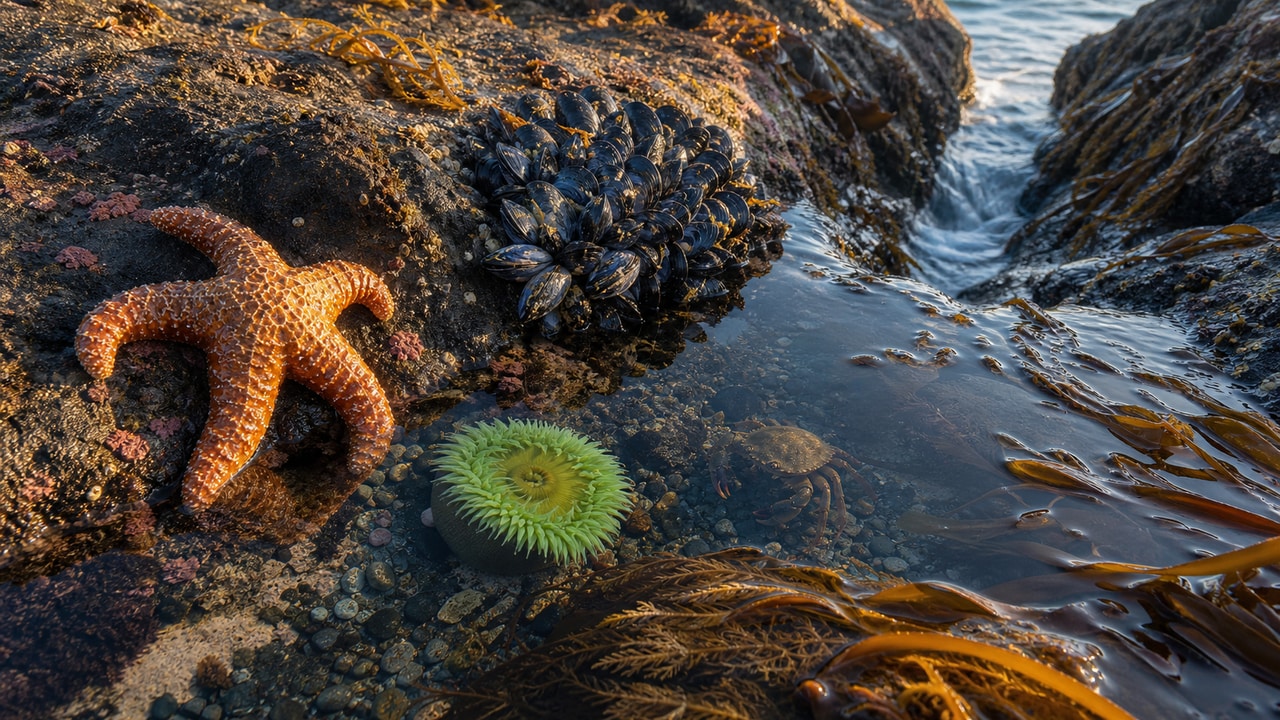
This guide uses a photorealistic Pacific tidepool with a sea star, mussels, an anemone, a shore crab, kelp, and a visible water channel. Each subject is easy to distinguish and has enough space around it for a marker, which makes the photograph useful for both explanation and spatial practice.
After choosing the picture, give it a Title and write the required Image description for screen readers. The Create interactive image button stays inactive until your image, its dimensions, and a bit of alt text are all in place. Write it for someone who cannot rely on the picture alone. When everything is ready, click Create interactive image.
Step 2: Get to know the editor
Image Studio keeps the whole journey in one place. The left Scenes panel lets you move between the cover and any deeper images. The middle is the image canvas, where you place and resize elements directly. The right Elements and Inspector area lists what belongs to the selected scene and opens its content, placement, and style controls.
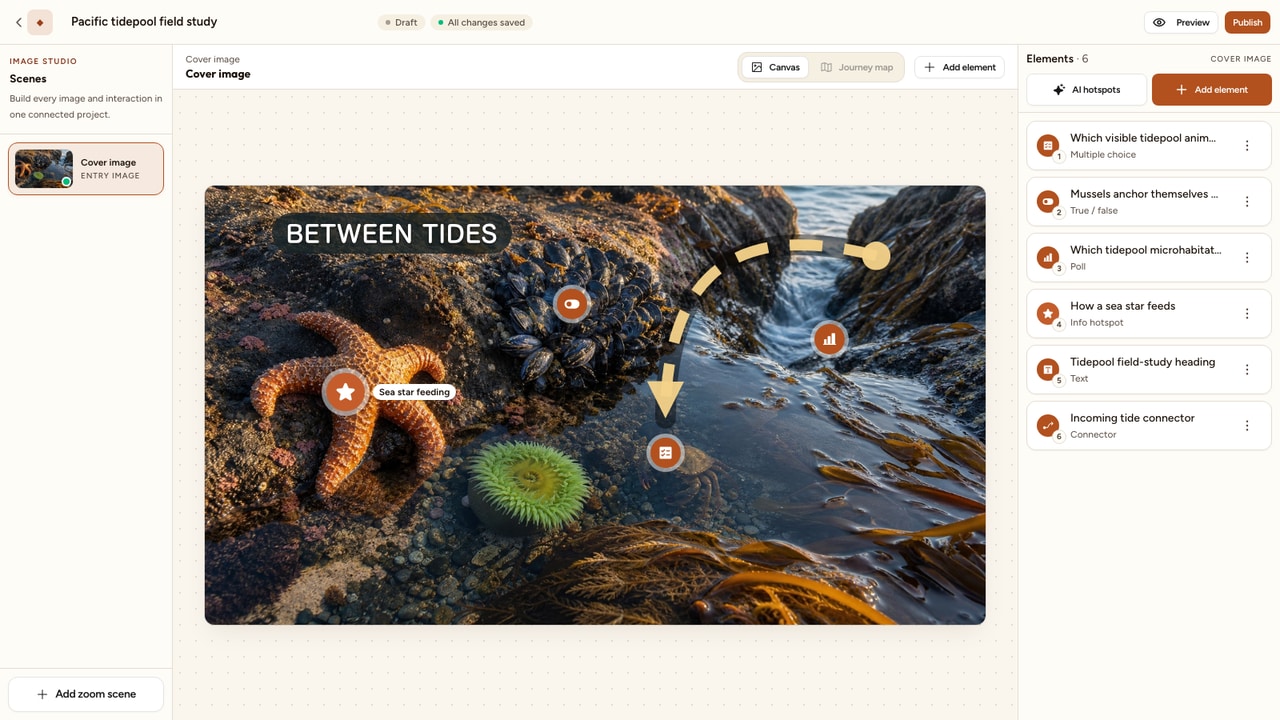
Use Add element for teaching overlays, questions, reflection activities, and zoom scenes. Switch between Canvas and Journey Map when you need to edit one image or understand the whole route. Two things are worth knowing right away. Your work saves automatically as you go; the badge near the title confirms it (Draft, then Draft saved). And the editor is built for a real screen, so use a laptop or desktop rather than a phone when you are authoring.
Step 3: Let AI place hotspots for you
The fastest way to a first draft is to let AI do it. With no activities yet, the panel shows an empty card with an Add AI hotspots button. Click it. AI looks at your picture and proposes information hotspots for clearly visible parts, with a short title and explanation for each suggestion. The result is a draft for you to verify, not a completed lesson.
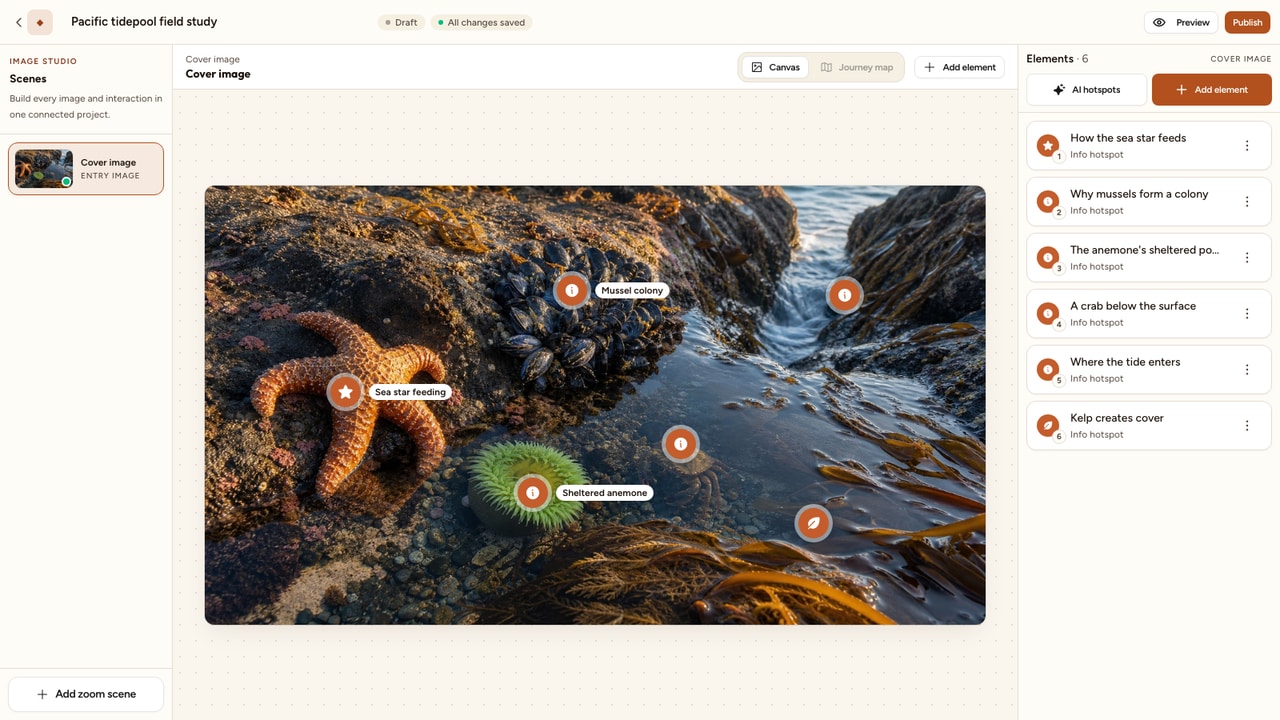
On the tidepool, the first draft identified the sea star, mussel colony, anemone, shore crab, incoming water channel, and kelp. A run can suggest up to eight hotspots. It can also return none when the picture does not contain clear, distinct subjects.
A few things are worth keeping in mind. Auto-place uses a rate-limited run allowance rather than image-generation credits. The confirmation dialog shows the current allowance before a run. The hotspots it creates are a first draft, not a finished product, so rename, reword, move, or delete any of them. If your picture is abstract, a solid color, or only text, AI may not find clear parts to mark. It will tell you so and invite you to place activities by hand.
Step 4: Place activities by hand
Auto-place gives you hotspots. To add anything else, or to place a hotspot exactly where you want it, click Add element. The same menu works on the cover and every zoom depth, so you never need to learn a second authoring flow halfway through a journey.
Pick a type and your cursor becomes a crosshair, with a hint that reads Click or drag to place it. Point activities, like an information hotspot or a question pinned to a spot, drop where you click. Region activities, like Click region, Find all, or Label image, are drawn as a rectangle, an ellipse, or a freehand shape, so you can outline exactly the area that counts. A connector is drawn from one point to another. If you draw a region that is too small, a hint asks you to draw a bigger one.
Everything keeps autosaving as you place and edit, so you can experiment freely.
Step 5: Choose the right activity type
Image Studio presents 21 practical choices in four learner-focused groups. That menu combines 14 response and teaching activities, six passive overlays, and one doorway into another image scene. You do not need all of them. Most images work well with a few clear explanations and one or two purposeful questions.
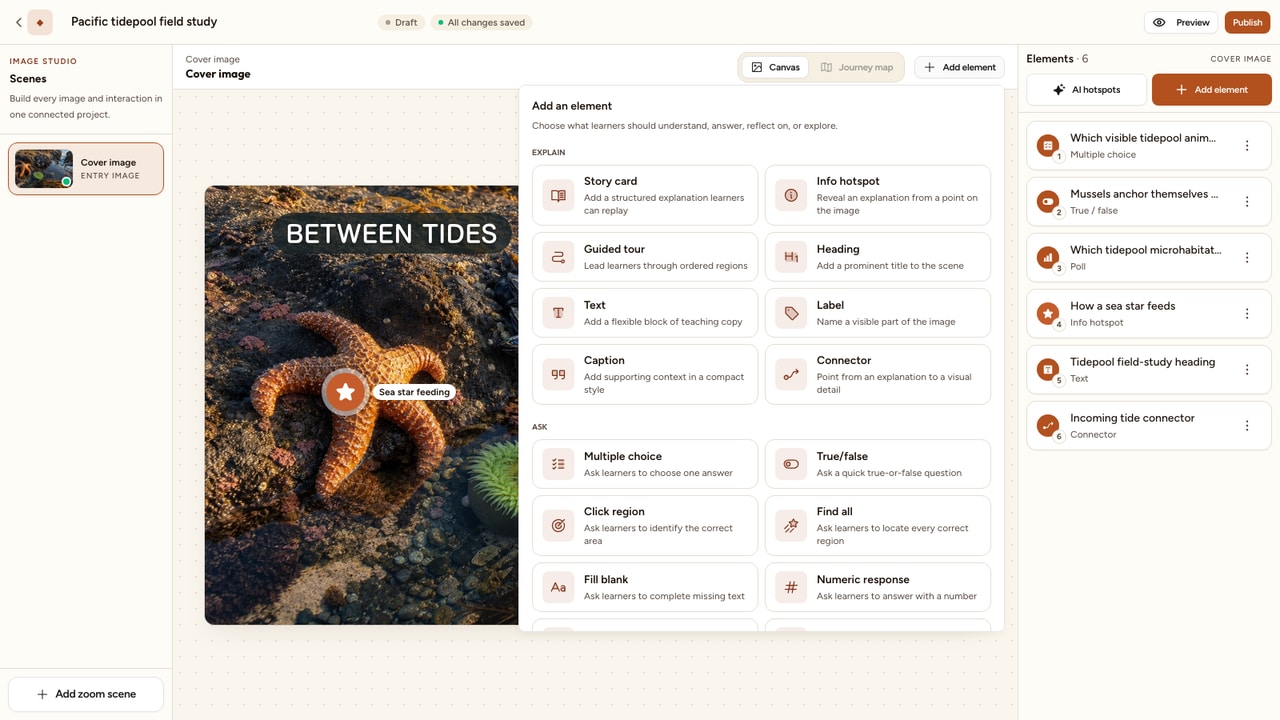
Explain
Use Story card, Info hotspot, Guided tour, Heading, Text, Label, Caption, or Connector to focus attention and explain what the image shows.
Ask
Use Multiple choice, True/false, Click region, Find all, Fill blank, Numeric response, Label image, or Sequence regions to check understanding in context.
Reflect
Use Free response, Poll, Rating, or Compare regions when the goal is confidence, opinion, observation, or an open comparison.
Explore
Use Add zoom scene to draw a doorway into another image. Upload its destination manually, then use the same element menu inside that deeper scene.
A Narrative Tapestry is simply an interactive image with connected zoom scenes. Choose Add element, select Add zoom scene, and draw the doorway over the exact detail learners should enter. Upload the destination image manually, then add its explanation, questions, and any further doorway with the same tools.
The spatial types are what make images special. Click region asks a learner to click the right part of a diagram. Find all asks them to find every correct spot, like every hazard in a workshop photo. Label image has them match labels to targets. Sequence regions has them click regions in the correct order, like the stages of a cycle. Configured objective tasks are scored on the server when they have the required answer key and points. Polls and other reflective activities collect responses instead of contributing to the score. A free response is auto-graded only when you configure keywords and points; otherwise it remains ungraded or waits for educator review. Mix a few types so one picture both teaches and checks understanding.
Step 6: Fill in and style each activity
Select any activity to open its settings on the right. Question types show the same familiar question form used across Interakly, with a Save button that commits your content and points. An information hotspot has fields for a Title, an Explanation, an optional Image (with its own alt text and caption), and an optional Link out to something like a reference page.
Markers also get a Marker style panel with Classic, Prism, Focus, Orbit, and Edge treatments. You can adjust tint, icon, S/M/L size, pulse, label visibility, and the custom label. Ordinary activities start with Classic, labeled Legacy in the editor, while zoom doorways start with Focus. And right next to the selected marker, a floating Quick edit toolbar lets you change the color, size, and title, or delete it without leaving the picture.
If an activity is missing required content, a Needs setupbadge appears on its row. Resolve those items before publishing so the public experience never opens an incomplete prompt.
Step 7: Preview as a learner
Click Preview to see your image exactly as a learner will, markers, questions, and all. Nothing is recorded in preview, so click around freely. Use Back to editor to return and adjust.
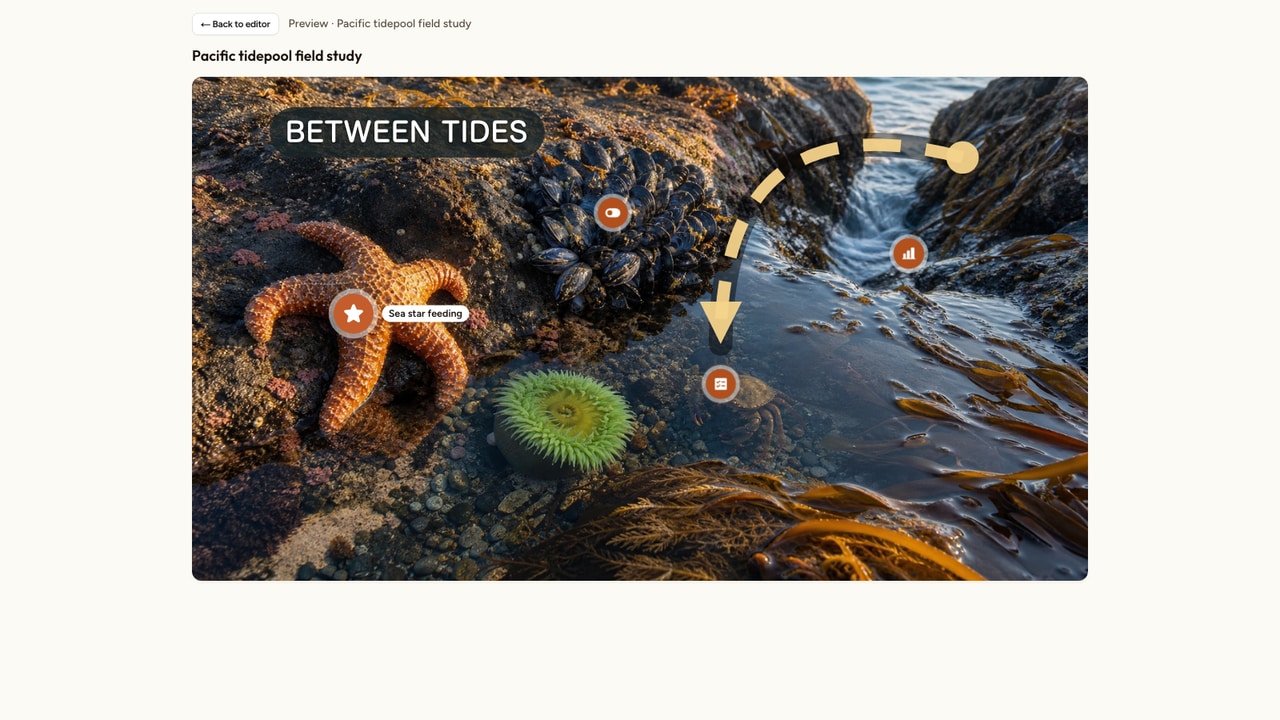
During preview, check that every marker sits on the right part, that questions grade the way you expect, that region tasks accept the clicks you intend, and that every explanation reads clearly. Do at least one full pass and open every activity.
Step 8: Publish your interactive image
When it looks right, click Publish. The status badge turns into a green Published pill, and your image goes live. Save the activity you are editing and resolve any validation message before you confirm the release.
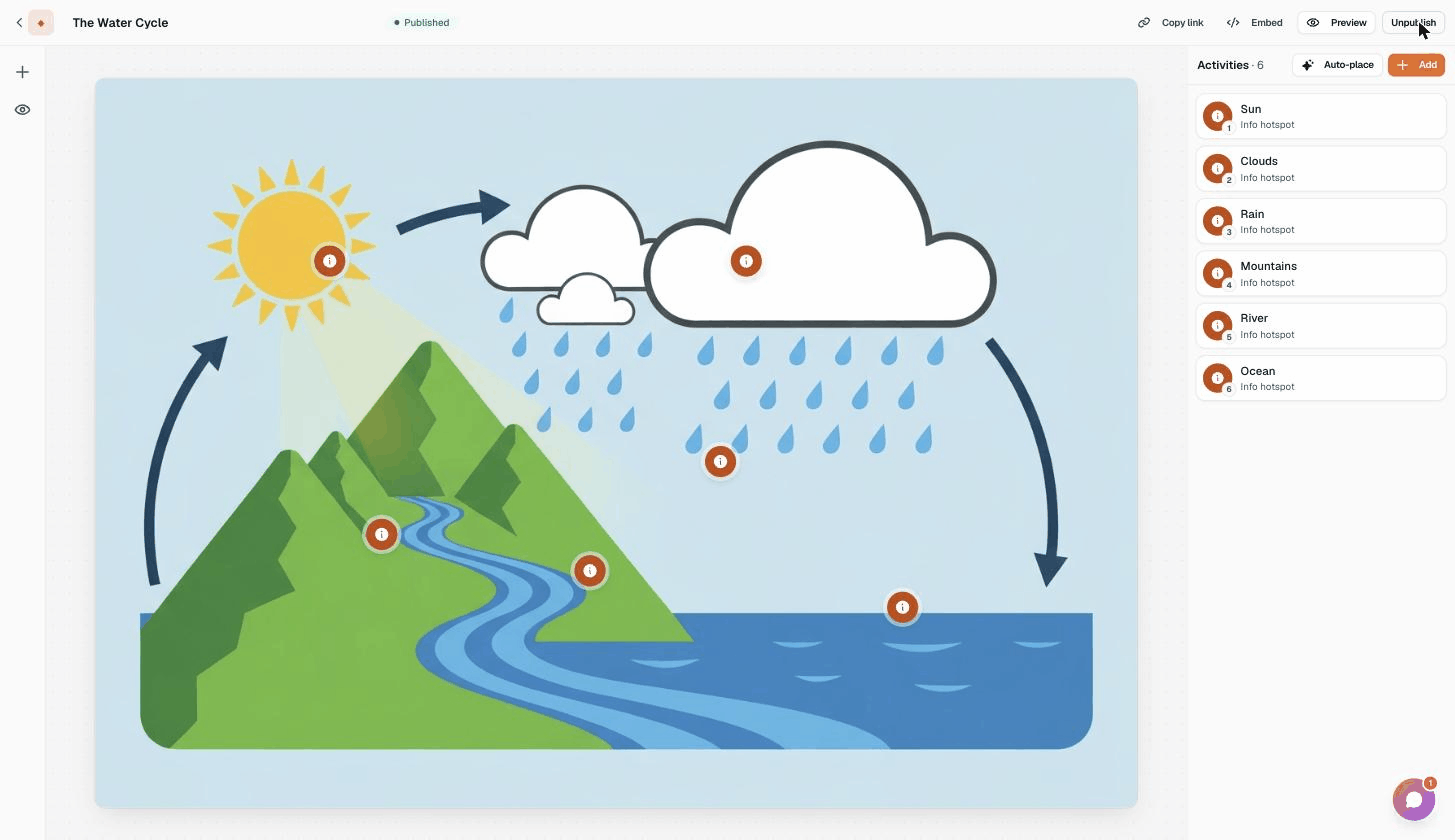
Publish validation checks that configured activities are complete. Changed your mind? Unpublish at any time to take it back to a private draft. Once published, the share and embed controls appear in the top bar.
Step 9: Share and embed
There are two main ways to get your interactive image in front of learners. The image's access settings decide whether identity or sign-in is required.
Share a link
Click Copy link to grab the learner address. This is the quickest way to share it in a message, document, or slide. Confirm the published access settings before distribution.
Embed it in a compatible host
Click Embed to get a snippet for websites and learning platforms that accept iframe embeds. Use the learner link if the destination blocks iframe content.
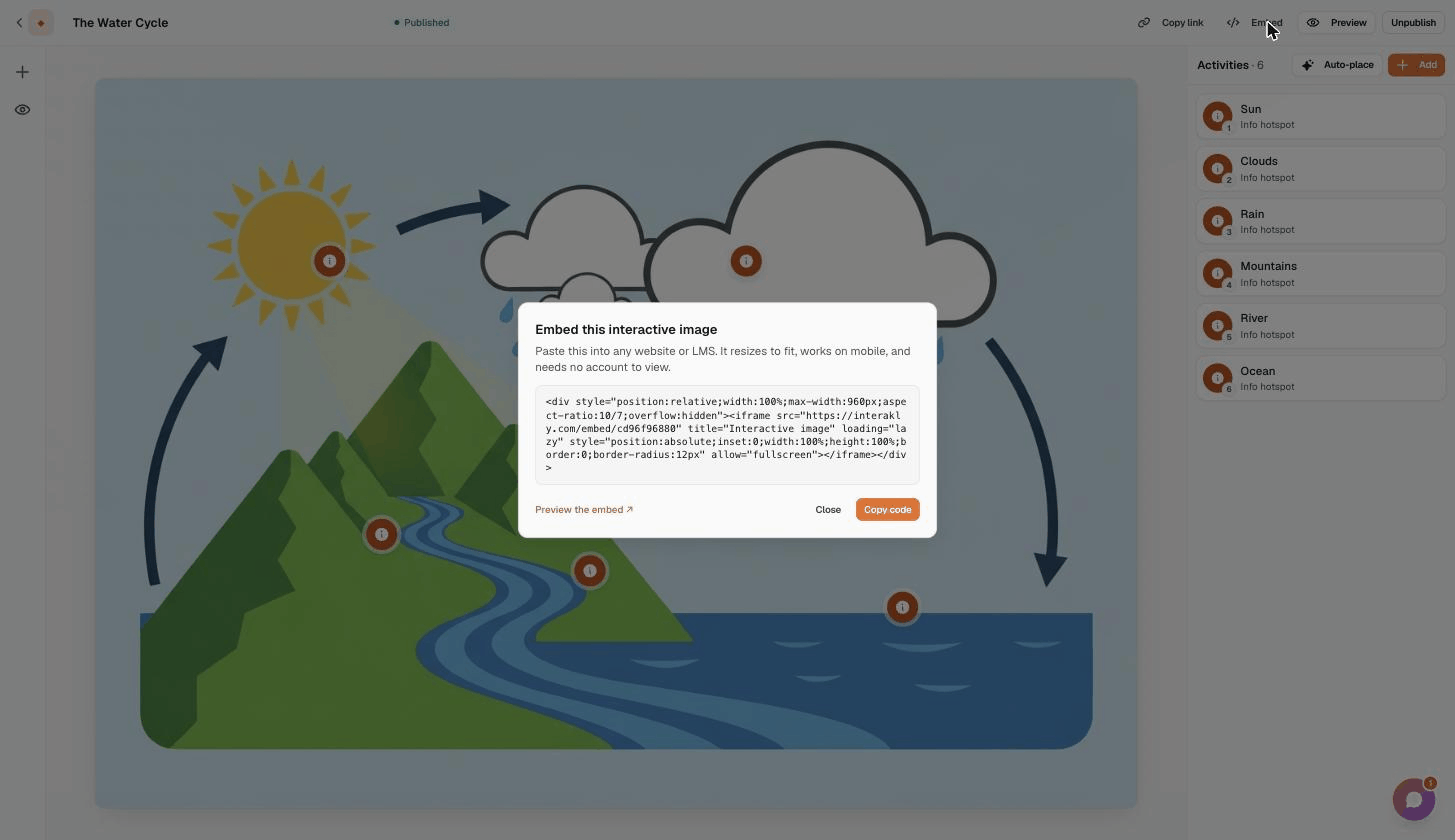
For most situations the share link is all you need. Reach for the embed when you want the image to live inside an existing page, a course, or a lesson in your LMS.
Common mistakes to avoid
After watching a lot of interactive images get built, the same handful of slips come up again and again. None of them is hard to avoid.
Choosing a busy or low-resolution picture
If the parts of your picture blur together or overlap, both AI and your learners will struggle to tell them apart. Pick an image with clear, distinct regions. A clean illustration often works better than a cluttered photo.
Leaning on Auto-place and never editing it
Auto-place is a fast starting point, but its text is generic by design. Spend a few minutes renaming and rewording so the explanations sound like you and match what you actually teach.
Placing markers slightly off target
A hotspot that sits next to the thing it describes, rather than on it, reads as a mistake. Nudge each marker until it clearly belongs to its part, and confirm it in preview.
Grading everything
Not every activity needs a score. Hotspots that simply teach, and reflective prompts that invite thinking, are often more valuable than another graded question. Mix teaching, testing, and reflection.
Skipping the alt text
Alt text is required for a reason. It helps a screen reader user identify the image. A complex diagram or map also needs a longer text explanation of the relationships and data that matter.
Publishing without a full preview
Preview is where you catch the off-target marker, the question with two right answers, and the explanation that reads oddly. Always do one complete pass before you publish.
Frequently asked questions
How long does it take to make an interactive image?
A basic first version can be quick, but the useful estimate depends on the image and how much assessment you add. AI Auto-place can prepare a first set of hotspot suggestions. Allow time to verify every title, explanation, position, answer key, and route before publishing.
Do my learners need an account to view it?
A published image can allow account-free viewing when its access settings permit it. Private or restricted experiences can require identity or other access checks, so confirm the published settings before you share the learner link.
Is it free to make interactive images?
Plan availability can change, so check the current pricing page and the counters in the creator. AI Auto-place uses a rate-limited run allowance rather than image-generation credits. Starting-image and smart-graphic generation have their own account allowances, which the creator shows before you generate.
What is AI Auto-place and should I use it?
Auto-place asks AI to inspect your picture and propose information hotspots on clearly visible parts, each with a short title and explanation. It can speed up a first draft, but the number and quality of suggestions depend on the image. Review the facts, wording, and position of every result; rename, move, rewrite, or delete anything that does not serve the lesson.
Can I generate the picture instead of uploading one?
Yes. Choose Generate with AI, describe the starting image, then choose a visual treatment and aspect ratio. You can add interactions and zoom scenes later in the same Image Studio. Every destination scene in a zoom journey is uploaded manually. The creator shows your current image and smart-graphic allowances.
Can I put an interactive image on my own website or LMS?
Once published, click Embed to copy a snippet for websites and learning platforms that accept iframe content. Use the direct learner link when the destination blocks iframe embeds, and check the image's access settings before distribution.
Keep going
Plan the wider visual learning strategy
Choose when diagrams, maps, photographs, timelines, and interactive images help people understand a subject.
Choose an interactive image example
Compare practical patterns for teaching, training, orientation, assessment, and marketing.
Improve your image hotspot design
Place markers and regions clearly, write useful labels, avoid overlap, and check the phone experience.
Make an interactive diagram
Follow a diagram-specific workflow for explanation, labeling, spatial practice, feedback, and accessibility.
Make an interactive map for learning
Turn a verified map into focused exploration, location practice, interpretation, or route learning without marker clutter.
Ready to make your first interactive image?
Start with one clear image, choose one learner action, and preview the complete path before publishing.
Create an interactive image