How to Create Interactive Video (Step-by-Step)
Create an interactive video with a supported YouTube source or an uploaded file, then add purposeful interactions, test the learner route, and publish.
Creating an interactive video is not mainly a matter of adding more buttons. The useful workflow starts with a learning outcome, chooses a source that can support the intended action, places a small number of purposeful moments, and tests the published experience as a learner.
This guide follows that complete route in Interakly. It covers both supported YouTube sources and uploaded video, including the product differences that affect hotspots, branching, access, grading, and analytics.
Before you open the editor
Write down four decisions before authoring:
- Audience: who will watch, what do they already know, and which access or accommodation needs apply?
- Outcome: what should the learner be able to recall, decide, explain, locate, or perform?
- Evidence: what response would show progress toward that outcome without claiming more than it can measure?
- Next action: what feedback, practice, discussion, or support should follow the response?
Step 1: Choose the source
Supported YouTube source
Use a public or unlisted video that permits embedding. The source remains in YouTube's embedded player.
Uploaded video
Use an owned file for ad-free Interakly playback and source-specific spatial or branching capabilities. The current upload limit is 40 minutes.
A supported YouTube video is the shortest path for compatible non-spatial questions, polls, responses, cards, and participation moments. The video must permit embedding and remain available on YouTube. Embeddability does not grant copyright permission, so confirm that your use is authorized.
Upload video when the activity depends on an Interakly-owned coordinate system. Hotspots, image labels, annotation, drawing, embedded workspaces, and complete segment-based branching require uploaded video. Uploading also avoids YouTube advertising and source removal, but you remain responsible for rights, privacy, and appropriate access.
Step 2: Create the video draft
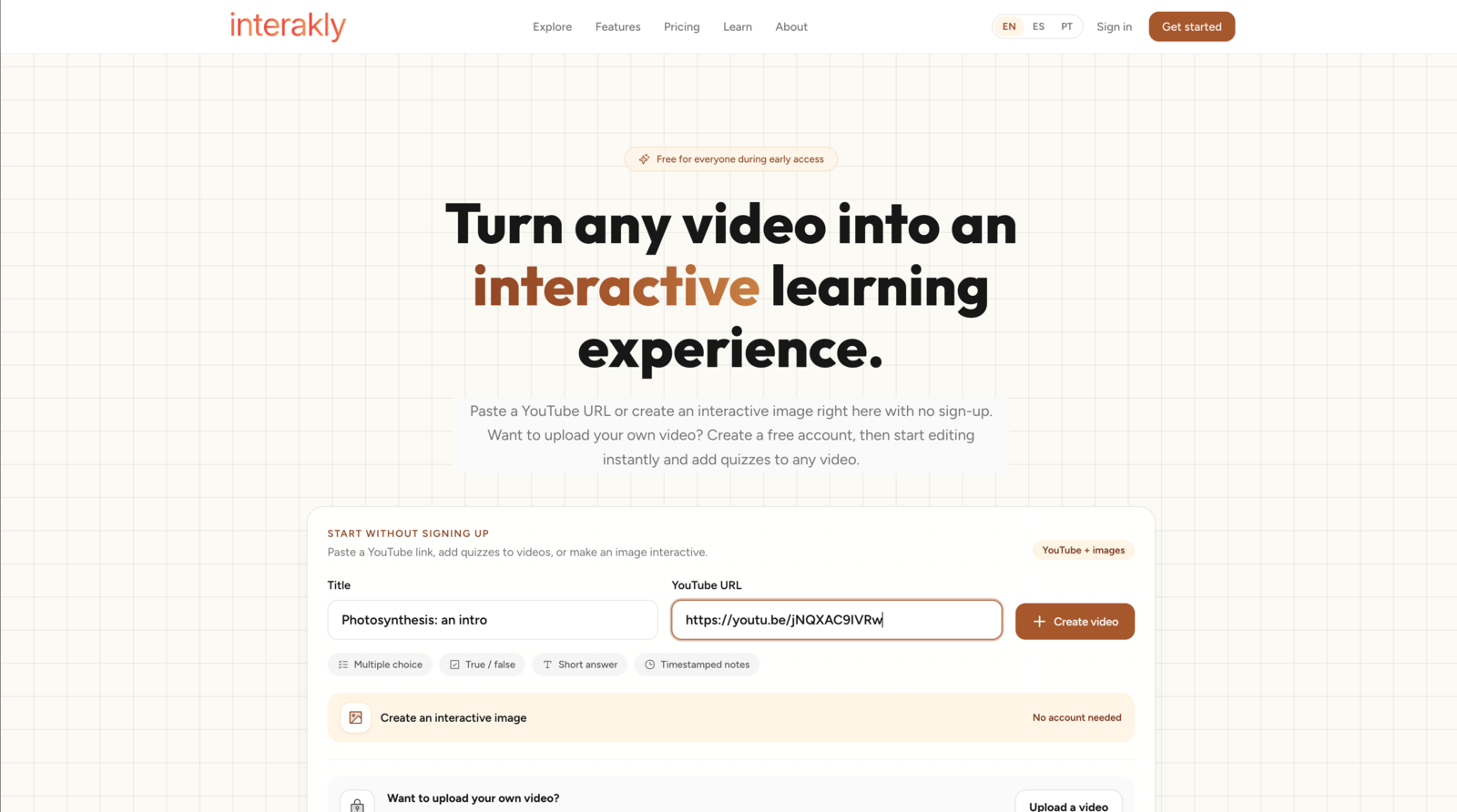
From the signed-in dashboard, open New Video. Choose YouTube or Upload. For YouTube, add a descriptive title and paste the supported URL. For an upload, choose the file, let the upload and server confirmation finish, then continue to the editor.
Keep the dialog open while an upload is active. Interakly provides an explicit Cancel action for abandoning the operation safely. Do not close the browser or navigate away and assume a partial upload became a usable draft.
Step 3: Define the learner outcome
Turn a vague goal into an observable action. “Understand photosynthesis” does not tell you what to ask. “Explain why light is required for the reaction shown in this segment” gives you a target for the source moment, response format, and feedback.
Map each planned interaction to that outcome. Use multiple choice when choosing among meaningful alternatives is the evidence you need. Use a numeric response for a calculation. Use an open response when the reasoning matters. Use a poll for prediction, confidence, or opinion without presenting it as right or wrong.
Step 4: Place purposeful interactions
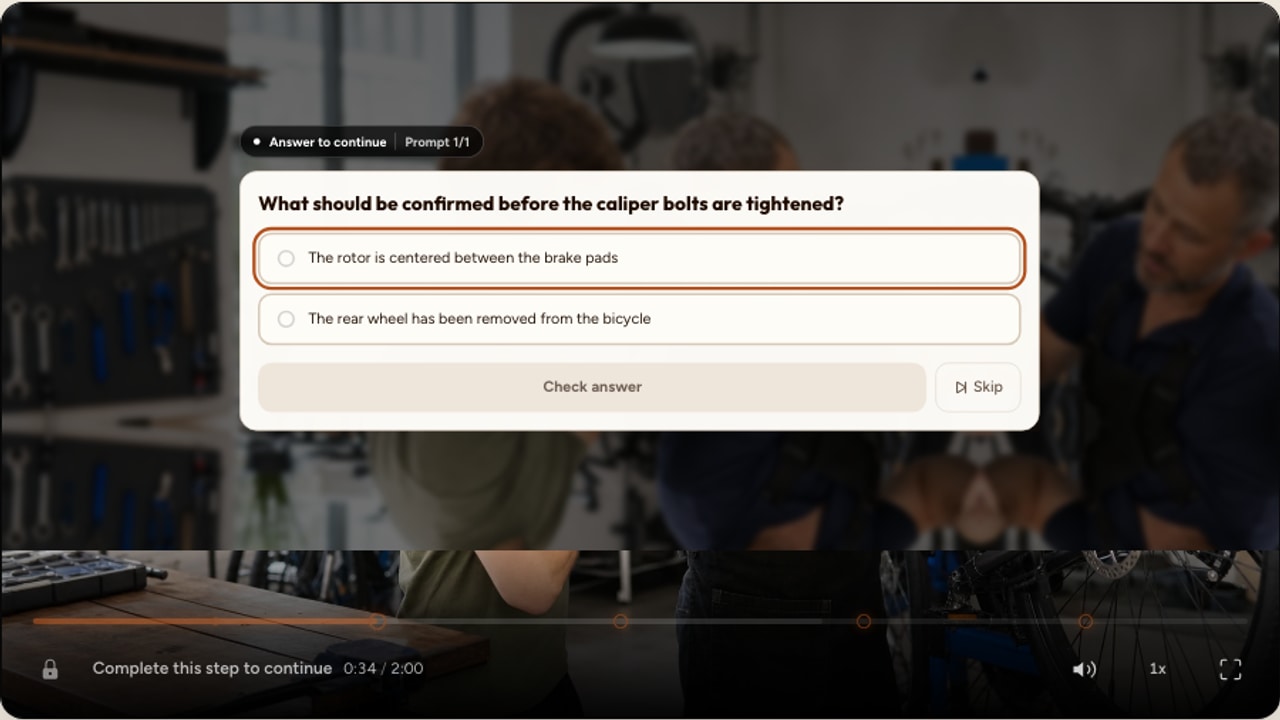
Watch the source in the editor and mark the moments where a complete idea, worked step, demonstration, or decision finishes. Place the interaction after the learner has received enough information to answer fairly.
Do not space prompts mechanically. A five-minute explanation may need to remain uninterrupted. A one-minute safety demonstration may justify two distinct decisions. Count meaningful learning decisions, not minutes.
Move to the source moment
Play or seek to the point immediately after the relevant explanation, example, or decision.
Open the interaction picker
Choose the format that matches the learner action. Source-specific filtering keeps unavailable spatial tools out of new YouTube authoring.
Draft the interaction
Write the prompt, response rules, answer options or fields, points where appropriate, and useful feedback.
Save it explicitly
Use the interaction form's Save action and wait for the editor to confirm the write before leaving the draft.
Inspect the full timeline
Check for accidental clusters, long unexplained gaps, repeated evidence, and interactions that arrive before their source context.
How Many Questions Should a Learning Video Have?
Choose a first-draft range from objectives, concept boundaries, response effort, and learner needs.
Step 5: Write questions and feedback
Write a fair prompt
- Test one clear idea or decision at a time.
- Use language appropriate for the intended learner.
- Make the answer available from the source or stated prerequisites.
- Avoid clues caused by option length, grammar, or obviously absurd distractors.
- Do not grade opinion, preference, or confidence as objective fact.
Make feedback teach
Feedback should identify the relevant principle, explain why the response fits or does not fit, and tell the learner what to do next. “Incorrect” reports a result but does not repair the misunderstanding. A useful explanation can point back to the source moment, distinguish two similar options, or offer another attempt.
Selected response
Use multiple choice when the alternatives represent meaningful distinctions or common reasoning paths.
Poll or rating
Use ungraded formats for predictions, confidence, preferences, and audience input.
Spatial response
Use an uploaded source when the learner must identify or manipulate a precise part of the frame.
Constructed response
Use open text, audio, drawing, or workspace evidence when the learner must create rather than select.
Open responses are educator-reviewed by default. Optional keyword rules can grade whether any or all configured terms appear, but that is a bounded string rule. It does not evaluate argument quality, nuance, or partial understanding.
Step 6: Use AI as a drafting assistant
Interakly can draft timestamped interactions when usable source evidence and the required services are available. The generator can reduce blank page work, but it does not define your curriculum, guarantee a correct answer, or verify the final learner experience.
Set the spoken or output language deliberately, request only the formats that match the outcome, and review every candidate against the source. Accept, skip, or regenerate candidates before inserting them. Generated items remain editable drafts, and publishing is a separate deliberate action.
Generate a Quiz From a YouTube Video
Understand transcript readiness, evidence limits, review, recovery, and the creator's responsibility for every draft.
Step 7: Configure playback and access
Use video settings to configure the experience rather than assuming one policy fits every audience. Current player controls include pausing on questions, allowing skip, allowing full or per-interaction retakes, preventing forward skipping, choosing a completion trigger, showing scores, and configuring the score screen.
Access can remain open or require a name, email, sign-in, password, allowlisted email, invitation, or approved embed domain. Choose only the identity level your purpose needs. If you collect learner identity or response data, define notice, access, retention, and deletion responsibilities before publishing.
Step 8: Test the real learner route
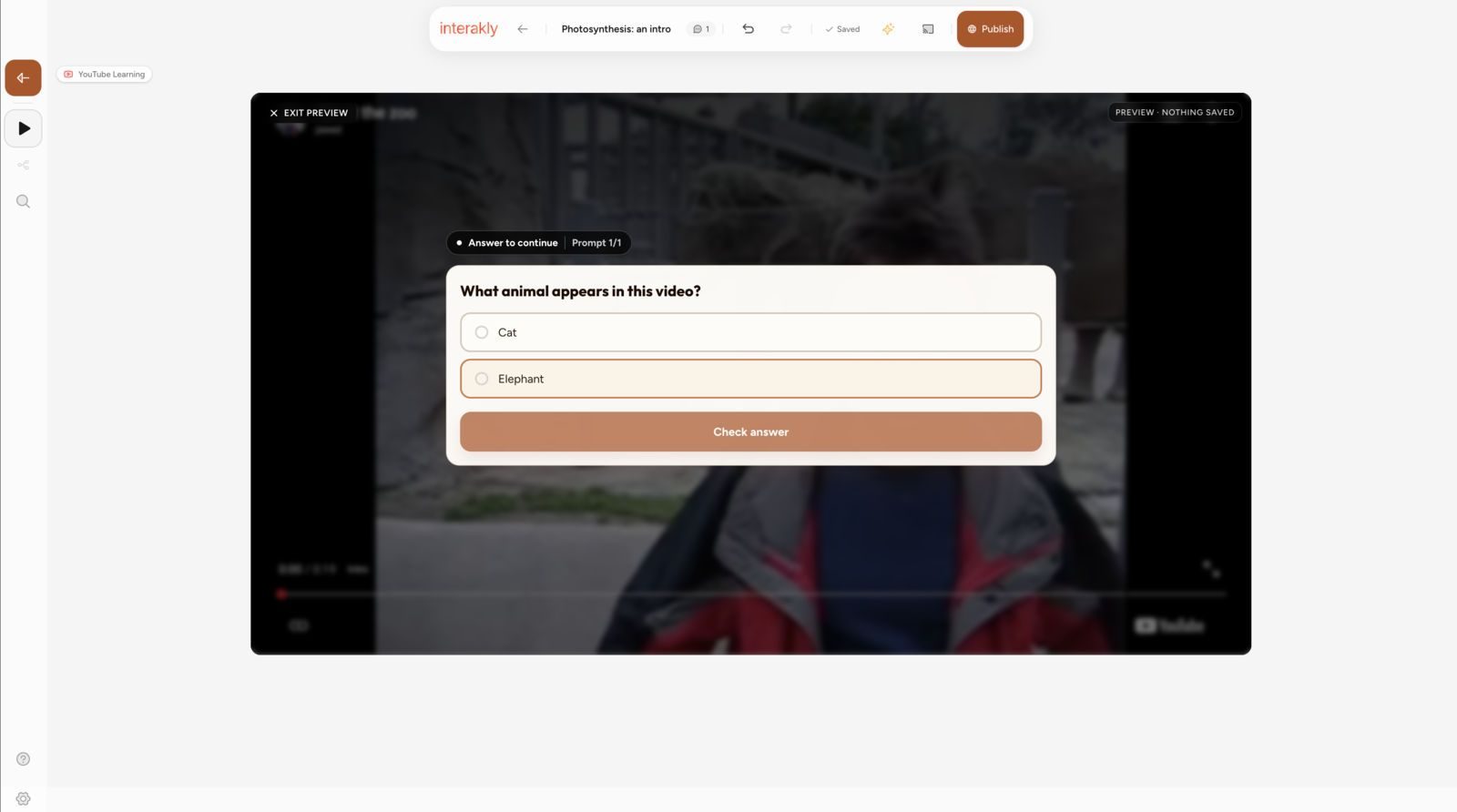
Editor preview is useful for checking content and timing, but release testing should also use the published learner route. The external page, phone viewport, LMS column, access gate, and return visit can reveal problems that an authoring canvas does not reproduce.
- Approach every interaction through normal playback.
- Submit a correct, incorrect, empty, and boundary response where relevant.
- Verify feedback, score, retry, review, skip, and resume behavior.
- Check captions, keyboard operation, touch targets, zoom, and contrast.
- Test phone and desktop widths plus the real embed column.
- Confirm the completion rule and score screen at the end.
- Return to a started or completed session and confirm recovery behavior.
Step 9: Publish and share
Publish only after the release check passes. Interakly can provide a share link and an iframe embed. An open share link can work without a learner account, while configured access controls can require additional identity or authorization.
For a compatible LMS, Interakly supports LTI 1.3 launch and grade-passback workflows when the platform is registered and the required services are configured. Treat that as an integration project, not a property of any iframe. Have the LMS administrator test the exact course launch, learner identity, assignment, score rule, and grade return before using it for live assessment.
Step 10: Review evidence and revise
Interakly can report sessions, completion, scores, submitted responses, per-question response counts, answer distributions, and correctness for graded interactions. Available views can also include watch activity, heatmaps, gradebook data, and CSV exports.
Use those observations to decide what to inspect. A low correct rate may reflect a difficult objective, poor instruction, ambiguous wording, a faulty key, or an accessibility problem. A common wrong option may be a useful clue, but it does not prove a misconception. Review the item and source, make one bounded revision, and compare later evidence separately when possible.
Video Question Analytics: Read Results Without Guessing
Interpret response counts, correctness, and answer patterns without turning descriptive data into causal claims.
Common mistakes
- Following a timer rule: even spacing can split an explanation or create prompts that collect no useful evidence.
- Choosing the source too early: a YouTube project cannot support precise on-frame activities that require uploaded media.
- Trusting the first draft: author-written and generated questions both need source, wording, answer, feedback, and timing review.
- Relying only on editor preview: test the published phone, desktop, access, and embed routes.
- Grading subjective input automatically: a keyword match is not a general evaluation of reasoning or writing quality.
- Overreading analytics: product events describe recorded behavior under configured rules. They do not prove attention, retention, transfer, or cause.
Release checklist
- The source is permitted, playable, and appropriate for the audience.
- Every interaction maps to a stated learner outcome.
- Every graded response has a verified answer rule.
- Feedback explains the relevant principle and next step.
- YouTube and uploaded-video capabilities are not confused.
- Captions and essential visual information have an accessible route.
- Keyboard, touch, zoom, mobile, and embed behavior have been tested.
- Access and identity collection match the stated purpose.
- Completion, score, retake, and skip rules are documented accurately.
- The published learner path passes a complete end-to-end test.
Sources and further reading
- Ploetzner, The effectiveness of enhanced interaction features in educational videos: a meta-analysis.
- Zhang and colleagues, Active learning strategies in video learning: A meta-analysis.
- Szpunar, Khan, and Schacter, Interpolated memory tests reduce mind wandering and improve learning of online lectures.
- Guo, Kim, and Rubin, How video production affects student engagement.
- Butler, Karpicke, and Roediger, Correcting a metacognitive error with feedback.
- W3C, Evaluating Web Accessibility.
- 1EdTech LTI implementation guide.
FAQ
How long does it take to create an interactive video?
It depends on the source length, number of interactions, feedback, access configuration, and review standard. A short first draft can be quick, but allow time to verify the answer key, learner view, mobile layout, captions, and every response path.
What video length works best?
There is no universal ideal length. Use the shortest source that fully teaches the intended outcome, and divide a long source when each section has its own purpose. Interakly currently limits uploaded videos to 40 minutes each.
Should I use YouTube or upload my own video?
Use a supported public or unlisted YouTube source when compatible non-spatial interactions are enough. Upload your own video when you need an Interakly-owned media frame for hotspots, labels, annotation, drawing, workspaces, or complete segment-based branching.
How many questions should I add?
There is no research-backed timer rule. Add one when the learner should retrieve, apply, predict, explain, or decide after a complete source moment. Remove prompts that repeat the same evidence or interrupt without helping the learner.
Do viewers need Interakly accounts?
An open published share link can be viewed without an Interakly account. Authors can instead require a name, email, sign-in, password, allowlisted email, invitation, or approved embed domain. The chosen access route determines what the viewer must provide.
Is Interakly free?
Interakly's current pricing page says every current feature is free during early access, with no credit card required. Pricing and plan boundaries can change, so check the pricing page before relying on that policy for a program or procurement decision.
What Is Interactive Video?
Understand the format, research, source boundaries, analytics, and common uses.
How to Make YouTube Videos Interactive
Follow the source-specific workflow for supported YouTube videos.
Interactive Video Best Practices
Apply a complete planning, feedback, accessibility, mobile, and release baseline.
Create one purposeful interactive video
Choose the right source, add learner actions at meaningful moments, and test the complete route before sharing.
Explore video interactions