Captions for Learning Videos: Accuracy and Design
Create learning-video captions that preserve terminology, synchronize with speech, include meaningful sound, avoid player UI, and pass human review.
Learning captions are timed instructional text. They carry the spoken explanation, identify voices when necessary, preserve meaningful sound, and stay synchronized with the evidence on screen. Their quality affects whether a learner receives the same lesson—not merely whether the words look approximately correct.
Research has found benefits from captions in multiple viewing contexts, but a caption track is not automatically effective because it exists. The production job is to preserve meaning, timing, and readability inside the real player the learner will use.
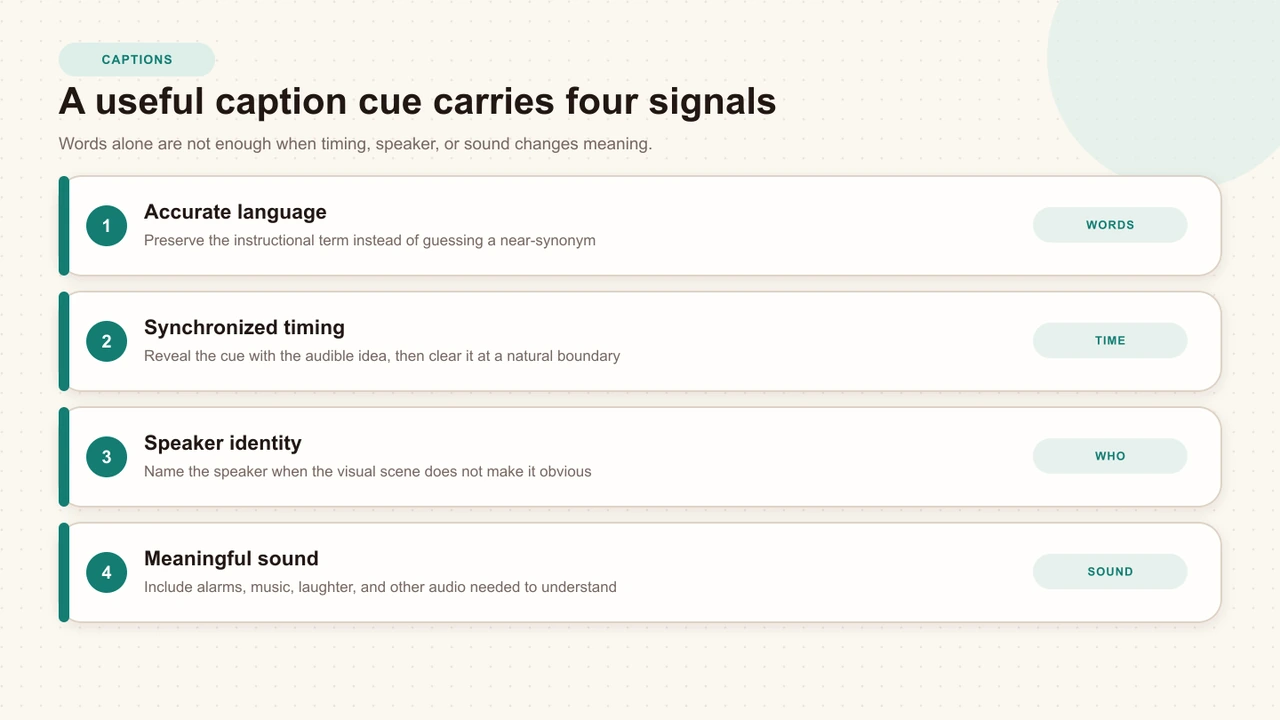
Captions carry instructional meaning
W3C defines captions as synchronized text or visual alternatives for speech and the non-speech audio needed to understand media. That distinction matters in education. “Set the meter to millivolts” is not equivalent to “set the meter to volts.” A missing decimal, chemical name, or speaker change can reverse an instruction.
Plan captions as part of the lesson source. A clear recording, deliberate terminology, visible speaker turns, and pauses between ideas make both the caption draft and the final review more reliable.
Write a caption brief before production
Give the caption reviewer a short brief before transcription begins. It should list the lesson language, approved spellings, speaker names, acronyms, numbers that must be exact, meaningful sounds, and any visual action that needs description outside the caption track.
- Terms: product names, formulas, abbreviations, proper nouns, and specialized vocabulary.
- Numbers: units, decimals, dates, tolerances, doses, and ordered steps.
- Voices: when the scene does not make a speaker change obvious.
- Sounds: alarms, clicks, machine states, music, laughter, and silence that affect meaning.
- Visual gaps: actions shown but never explained in speech.
Treat automatic captions as a draft
Speech recognition can accelerate the first pass. It cannot know which near-homophone is the approved technical term, whether “fifteen” should be “fifty,” or whether a pause marks a new instructional step. A generated track becomes publishable only after subject review and playback review.
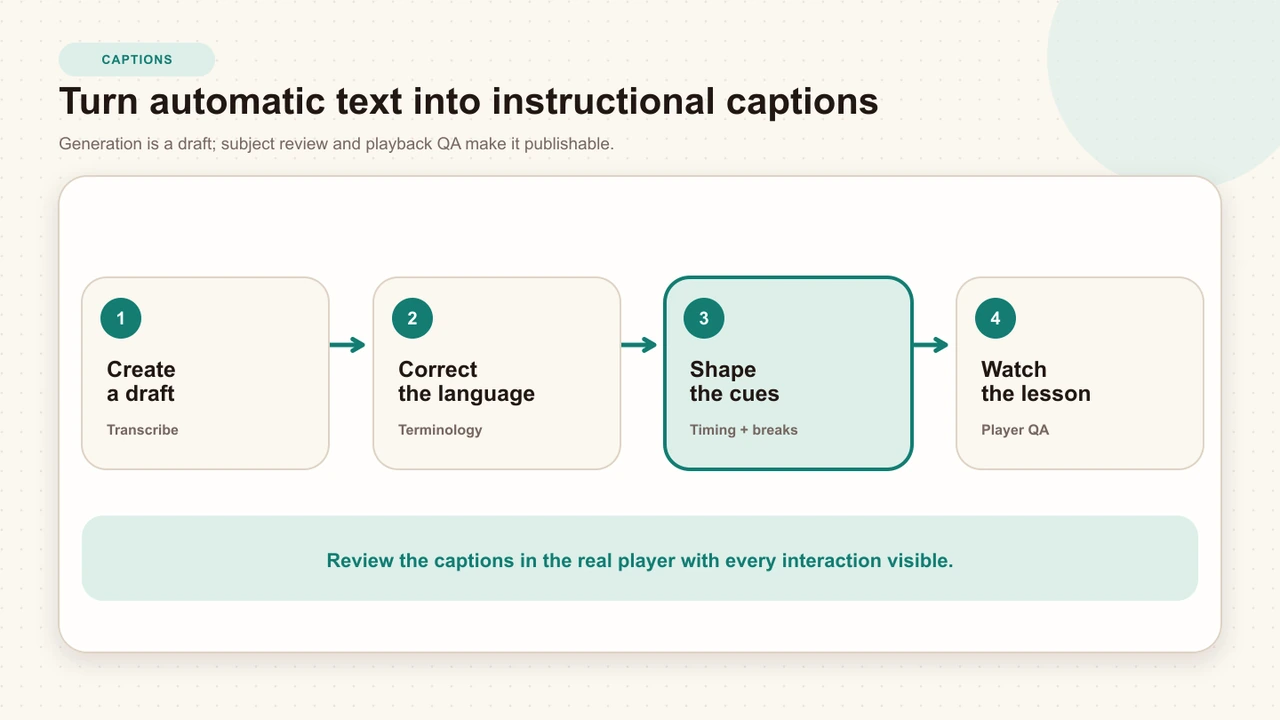
Create the draft
Generate or transcribe a complete time-aligned track without treating the raw output as final.
Correct the language
Use the caption brief and a subject reviewer to verify words, numbers, units, names, speakers, and meaningful sounds.
Shape the cues
Synchronize each cue with the audible idea, use natural phrase boundaries, and remove visually exhausting line breaks.
Watch the lesson
Review at normal speed with every question, card, hotspot, timeline marker, feedback state, and player control visible.
Protect names, numbers, and terminology
Review the information most likely to change the learner's action. Search the track for every number, unit, acronym, negation, named person, model, policy, and procedure term. Compare it with the approved script or source documentation rather than relying on memory.
Plausible transcription
Turn the dial to fifteen volts and wait until the alert stops.
Verified instruction
Turn the dial to fifty millivolts and wait until the amber alert stops.
The first sentence reads fluently and can still be dangerously wrong. In instructional media, linguistic plausibility is not the same as factual accuracy.
Synchronize cues with complete ideas
A cue should appear with the relevant speech and clear at a natural boundary. Avoid revealing a conclusion long before the speaker says it or leaving the previous instruction visible over a new demonstration. The learner should be able to connect text, voice, and visual evidence without deciding which one is current.
WebVTT represents captions as time-aligned cues with start and end timestamps. The format supports line, position, alignment, region, and speaker-related cue text features. Use those capabilities cautiously: custom positioning can help avoid essential visual content, but it also needs testing across player sizes.
Use readable line breaks and punctuation
Break at phrase boundaries rather than separating an article from its noun, a preposition from its object, or a person's name across lines. Use punctuation to preserve the speaker's meaning and pace. Do not produce a new cue for every isolated word unless the source itself requires that effect.
- Keep closely related words together.
- Start a new cue when the speaker, idea, or audible event changes.
- Use capitalization and punctuation consistently.
- Avoid dense multi-line blocks that compete with the video.
- Read the cue at normal speed; do not judge readability from a paused frame.
Identify speakers and meaningful sounds
Add a speaker label when the voice is not visually obvious or when the identity changes interpretation. Include a concise sound description when the sound contributes information: [alarm sounds], [motor stops], or [quiet music]. Avoid narrating every incidental noise.
Use the lesson objective as the filter. If the learner must notice that a pump stopped before selecting an action, the stop belongs in the caption. If distant traffic does not affect the task, it usually does not.
Keep captions clear of interactions
Interactive video adds spatial competition. Captions often occupy the lower media area; transport and timelines also live near the bottom; hotspot feedback or passive cards may arrive over the same frame. A cue that is readable in the source player can become hidden in the final lesson.
- Finish the spoken sentence before a blocking prompt appears.
- Keep caption placement away from essential labels, faces, and demonstrated controls.
- Confirm wrapped two-line cues remain above the player transport.
- Check temporary feedback and hotspot labels against the caption's real occupied band.
- Preview the phone-sized player, embed, portrait source, and fullscreen state.
Know when a transcript or description is also needed
Captions, transcripts, and description overlap, but they are not interchangeable. A transcript provides a separate, searchable text version. Audio description communicates essential visual information in audio. A descriptive transcript can combine speech and visual description in a complete text alternative.
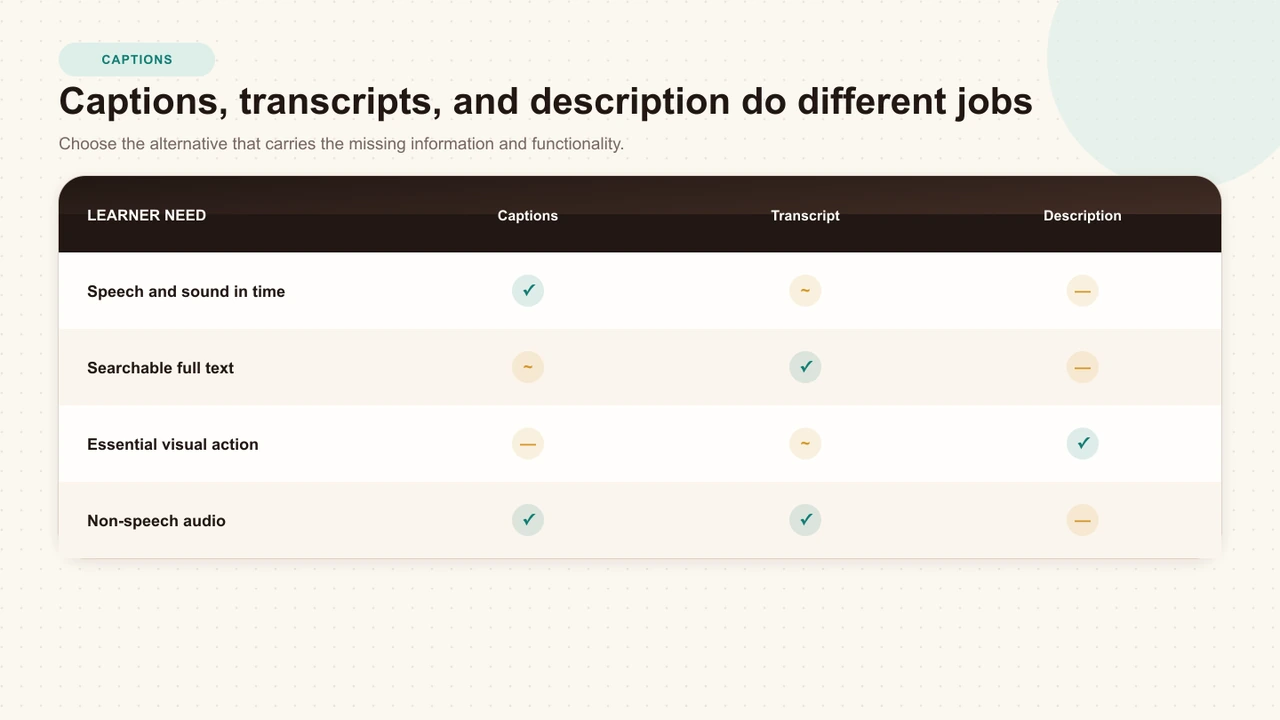
W3C recommends planning these alternatives during production. If the presenter already verbalizes every essential visual step, additional audio description may not be necessary. If a chart, gesture, or silent action carries new meaning, captions alone cannot supply it.
Review captions in the real player
Validate the caption file, then watch the production. File conformance can catch syntax problems; it cannot prove that a term is correct, that a cue arrives with the right action, or that a prompt covers it.
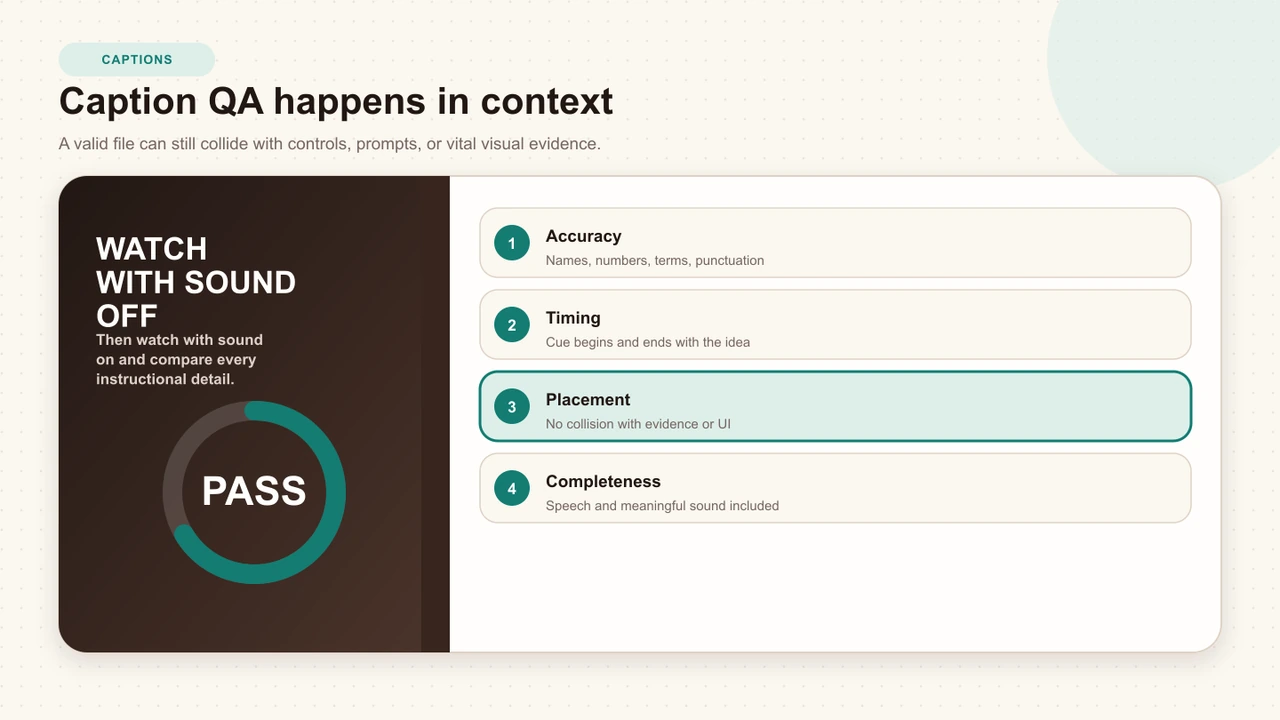
- Watch with sound off: verify the lesson remains understandable from captions and visuals.
- Watch with sound on: compare every name, number, term, speaker, and meaningful sound.
- Trigger every interaction: check pause timing, overlap, feedback, and return.
- Change the player: test the maintained phone floor, embed, orientation, and fullscreen.
- Invite a second reviewer: ask them to report meaning errors, not just spelling mistakes.
Caption workflow in Interakly
For an uploaded Cloudflare Stream video, Interakly's Player settings provide a language choice and Generate Captions action. Generation can take a few minutes. After the track becomes available, test the caption toggle and complete the published learner route.
Interakly does not turn automatic generation into a subject-matter approval. Verify the output before relying on it for instruction. For a YouTube source, caption availability and text are managed with the source video; fix the track at YouTube and recheck the embedded experience.
Interactive Video Accessibility
Place captions inside the wider media, keyboard, focus, timing, touch, and recovery audit.
Sources and further reading
- W3C WAI: Understanding Captions (Prerecorded) — the WCAG definition and purpose of synchronized captions.
- W3C WAI: Transcribing Audio to Text — practical caption and transcript content guidance.
- W3C WAI: Planning Audio and Video Media — production planning for captions, transcripts, and description.
- W3C: WebVTT specification — the timed-text data model, cue syntax, settings, and rendering rules.
- Gernsbacher (2015), Video Captions Benefit Everyone — a peer-reviewed research review of caption benefits across audiences.
- Yoon and Kim (2011), educational-video captions and deaf learners — a primary study comparing caption conditions and comprehension.
FAQ
What is the difference between captions and subtitles?
Captions represent speech and the non-speech audio needed to understand the media, such as alarms, music, laughter, or speaker identity. Subtitles are commonly a translation or transcription of dialogue and may not include those other sounds.
Are automatic captions accurate enough for a learning video?
Use automatic captions as a starting draft, not as proof of accuracy. A person who understands the subject should review names, numbers, technical terms, timing, speakers, and meaningful sounds in the complete lesson.
How long should one caption remain on screen?
There is no single duration that fits every cue. Synchronize the cue with the audible idea, give enough time to read it, and break at natural language boundaries. Review at normal playback speed rather than applying a duration rule mechanically.
Should captions include music and sound effects?
Include non-speech audio when it contributes to meaning, mood, timing, or the learner's required response. A safety alarm, a machine stopping, or a speaker laughing may matter; incidental background noise usually does not.
Does a transcript replace captions?
Not when synchronized media needs captions. A transcript is valuable for search, review, and people who prefer a separate text version, but it does not preserve the timing relationship between audio, visuals, and interaction.
How should captions work with interactive questions?
Keep the caption visible long enough to finish the spoken idea, then pause at a stable moment. In the published player, check that captions do not sit beneath the question, feedback, hotspot label, timeline, or controls.
Keyboard-Accessible Video Interactions
Make the player and every response operable once the media itself is perceivable.
Designing Interactive Video for Mobile Learners
Check caption clearance, scaling, touch, text entry, embeds, and fullscreen at the real phone-player size.
Interactive Video Best Practices
Connect caption quality to outcomes, source choice, timing, questions, feedback, and release review.
Review captions as part of the lesson
Verify language, shape the cues, turn sound off, trigger every interaction, and watch the published player at phone size.
Explore video interactions