Interactive Video Accessibility: A Practical Guide
Audit captions, keyboard routes, focus, contrast, touch, timing, feedback, and recovery across the complete interactive-video learner journey.
Interactive-video accessibility is the ability to perceive the lesson, operate the player, complete every response, understand what changed, and continue without losing context. A caption file or a keyboard-ready play button can be correct while the complete experience still fails.
This guide turns the current WCAG 2.2 principles and W3C media guidance into a practical review method. It is design guidance, not legal advice or a declaration that any particular lesson conforms.
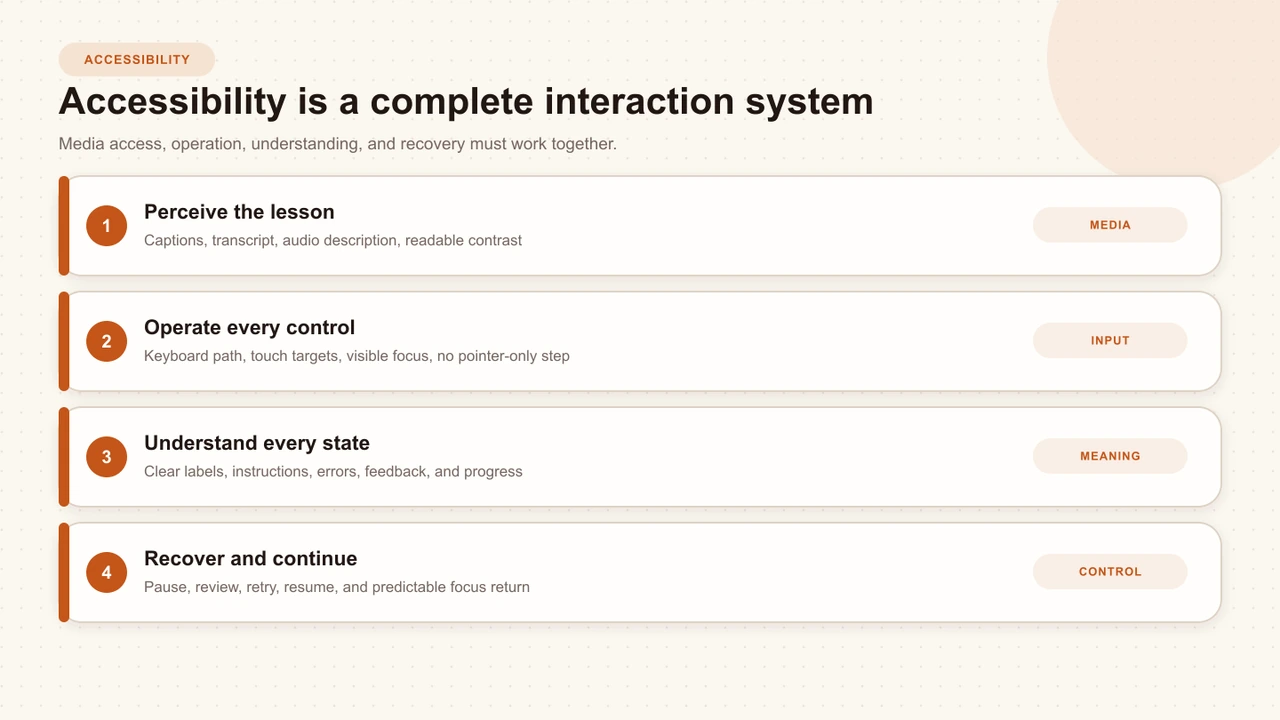
Accessibility is a system
WCAG organizes requirements around perceivable, operable, understandable, and robust experiences. Interactive video crosses all four. The media carries timed information, the player is an application, and a question or hotspot creates a second task inside that application.
Review the connections between those parts. Captions can be accurate yet hidden by a prompt. A choice can have a good accessible name yet use an invisible focus indicator. A dialog can be operable while returning focus to the top of the page after it closes. Each component passes in isolation; the learner route does not.
Begin with the learner journey
Select a representative lesson and map the route from first play to final completion. Include a blocking question, a passive card, feedback, review, and any branch or resume state the production uses. Then ask what the learner must perceive and operate at every transition.
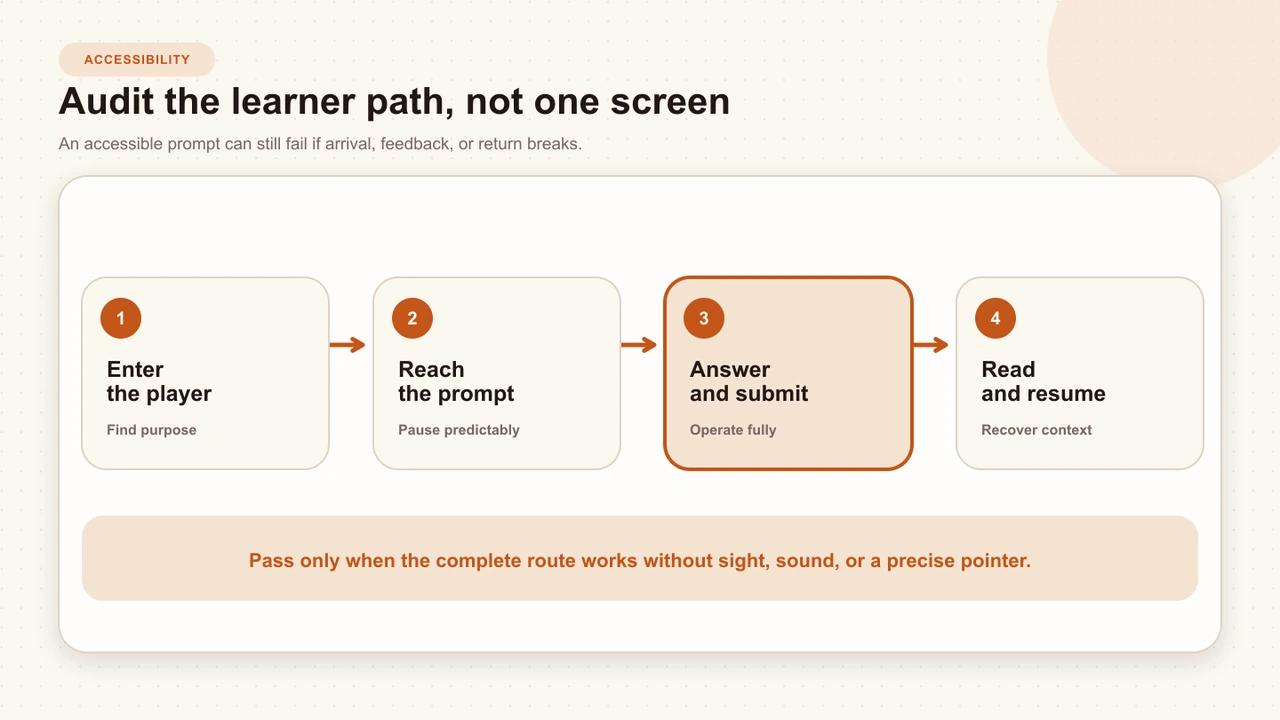
Enter and orient
Identify the lesson, source, duration, controls, caption state, and expected task without relying on sight or sound alone.
Reach the interaction
Confirm that playback pauses predictably, the new surface is announced, and focus moves to a useful place without changing context prematurely.
Complete the response
Use keyboard, touch, zoom, and the intended assistive technology route to select, edit, correct, and submit.
Understand and recover
Read the result, distinguish feedback from selection, close or continue, and verify that focus and playback resume at a stable place.
Make the media perceivable
Provide synchronized captions for prerecorded spoken and meaningful non-speech audio. A caption should preserve names, numbers, specialist terms, speaker changes, alarms, and other sounds that affect the lesson. A transcript supports scanning and review, but it does not replace the synchronized experience when timing matters.
Essential visual information also needs an equivalent. If the narration never explains the movement of a lever, the location of a defect, or the relationship in a chart, use audio description, a descriptive transcript, or a spoken revision of the source. Planning this before recording is usually cleaner than fitting description into a finished soundtrack.
Captions for Learning Videos
Build accurate, synchronized, instructional captions and review them inside the real interactive player.
Make every action operable
WCAG 2.2 requires functionality to be operable through a keyboard except where the underlying function truly depends on a path of movement. That means play, pause, seek, captions, volume, answer choices, fields, submit, dialogs, review, and completion all need a meaningful keyboard route.
Do not translate a pointer gesture literally. A drag interaction needs a move-up or move-down path; a point on a frame may need labeled regions or bounded numeric controls. The alternative should preserve the learning outcome, not merely expose an unrelated button.
Keyboard-Accessible Video Interactions
Test focus order, control patterns, dialogs, player controls, and recovery with a complete keyboard-only route.
Separate focus, selection, and feedback
A learner may focus one option, select another, and later see whether the selected answer was correct. Those are three states. If they share the same outline, the interface appears to select the wrong answer or preserve a stale highlight.
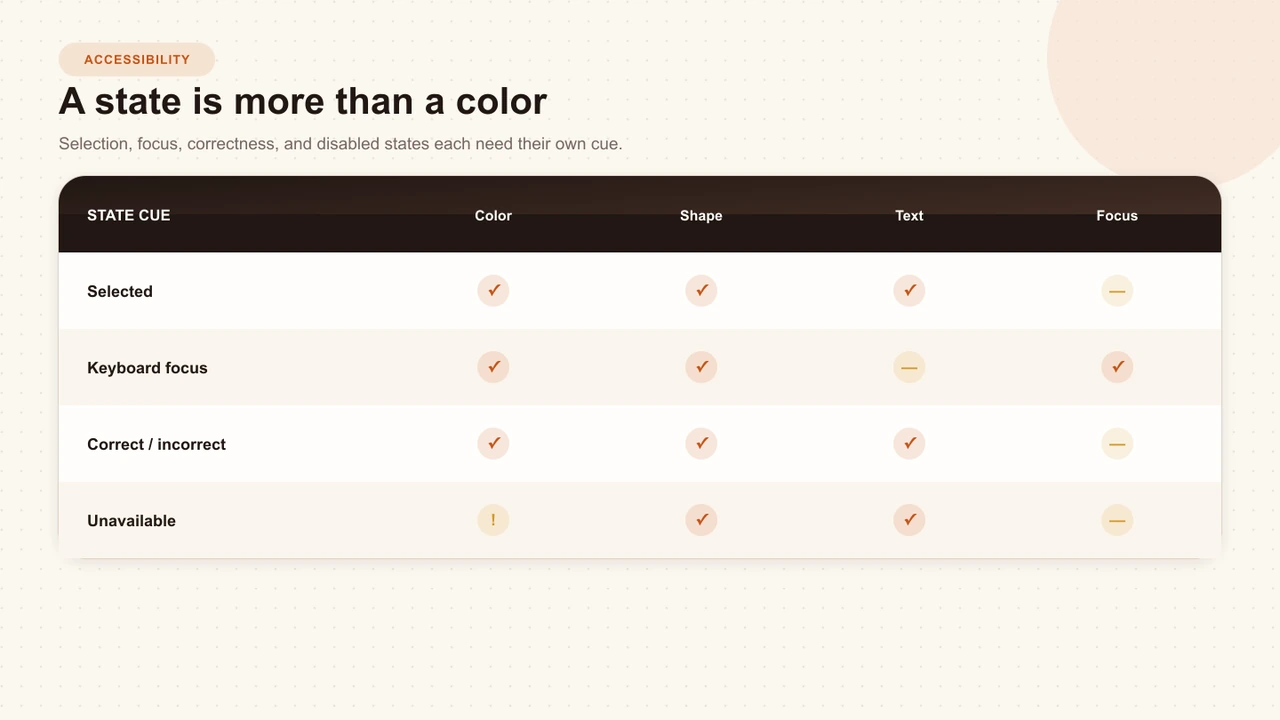
Ambiguous state
A thick accent outline appears on hover, keyboard focus, and the previously selected option.
Distinct state
Focus uses an offset ring, selection uses fill plus a checked control, and correctness adds explicit text or icon feedback.
Normal text should meet the WCAG contrast requirement against its background, while active controls and focus indicators also need non-text contrast. Do not use color as the only signal. Test the actual authored color combinations, including hover, disabled, selected, error, and feedback states.
Give learners control of time
Interaction changes the timing burden. A learner may need longer to read a question, operate a switch device, magnify the screen, or review a caption. Pause playback for blocking tasks and avoid response windows that expire unless time is essential to the measured outcome.
- Let the learner pause, replay, seek, and revisit instructions.
- Do not require a sequence of keystrokes within an arbitrary short interval.
- Keep essential feedback available until the learner dismisses or continues.
- Preserve submitted work when a review or result is pending.
- Make resume and start-over behavior explicit.
Write understandable prompts and errors
Put the task in the prompt, not in placeholder text or visual placement. State whether one or several choices are allowed, whether the response is graded, and what must happen before playback continues. Use visible labels for fields and associate errors with the control that needs attention.
Feedback should name the outcome. “Incorrect” is a state; “The guard is still open, so isolate power before touching the housing” teaches the next action. Keep the message available to screen readers and return focus to a predictable action after it is read.
Design spatial interactions with alternatives
A hotspot can be the right assessment when the location itself is the knowledge. It becomes exclusionary when a precise click is the only way to identify that location. Provide a text or control-based route that exposes the same meaningful regions and lets the learner choose or adjust one.
For freeform drawing or annotation, decide whether the path of the gesture is truly the outcome. If the outcome is the explanation, accept a typed or recorded description. If the outcome is placement, provide bounded x/y controls or a labeled region list. Document any remaining product limitations before assigning the activity.
Test zoom, reflow, touch, and orientation
WCAG reflow guidance tests content at a width equivalent to 320 CSS pixels, while orientation should not be locked unless a particular display is essential. Interactive video also has a player inside the page, so test the physical player—not only the responsive document around it.
- Zoom the page and complete the interaction without two-dimensional scrolling for ordinary content.
- Rotate the device and confirm the task remains reachable at short heights.
- Open the software keyboard and keep the focused field and submit action visible.
- Check target size and spacing for controls near the edges of the video.
- Verify captions, feedback, and hotspots do not cover one another.
- Repeat inside the actual LMS, website embed, or shared learner page.
Designing Interactive Video for Mobile Learners
Preserve the authored composition, touch clarity, media aspect, and player boundaries across phone, embed, and fullscreen views.
Audit the published experience
Automated scanners, unit tests, and component stories are useful, but the final evidence is a human completing the real published route. Test at least one lesson with sound off, keyboard only, touch, 200% zoom, and the screen reader configuration your organization supports.
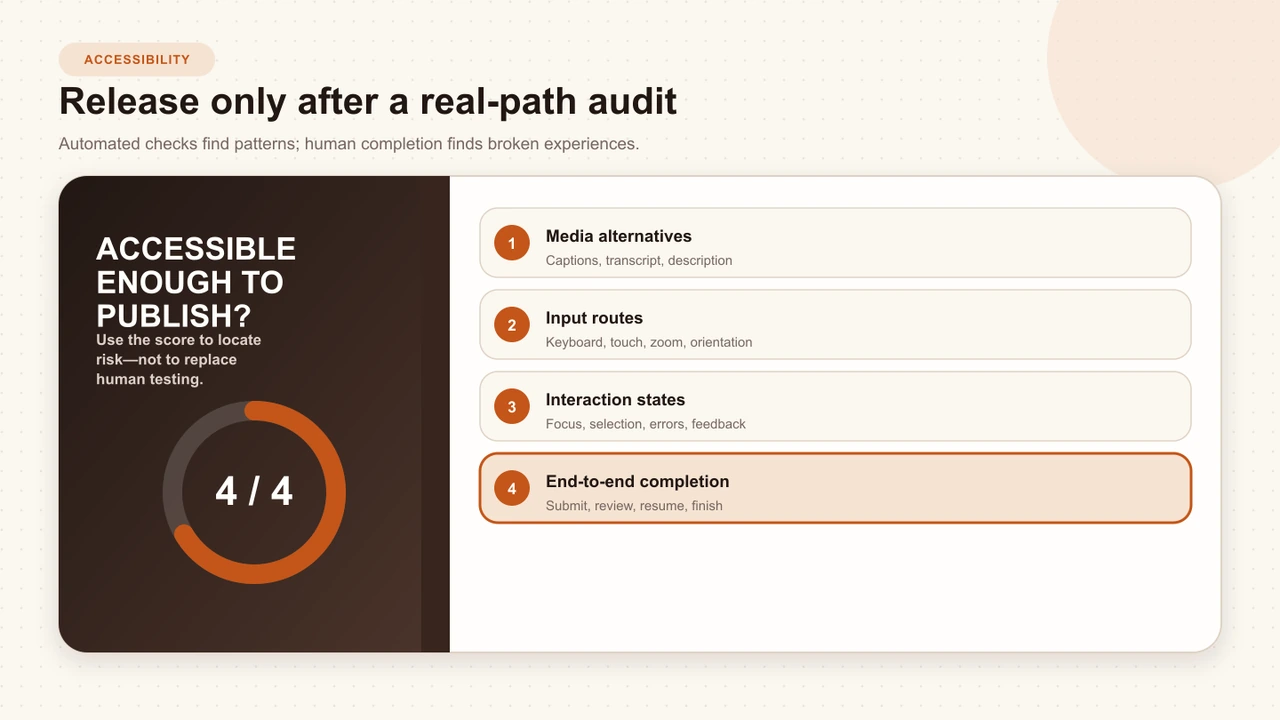
- Media alternatives: compare captions and descriptions with the source.
- Input routes: finish every interaction without a pointer and without precise gestures.
- State clarity: distinguish focus, selection, errors, feedback, disabled, pending, and complete.
- Recovery: close dialogs, resume media, review responses, retake where allowed, and reach completion.
Interakly product boundaries
Interakly supports uploaded-video VTT captions, keyboard-accessible player controls, and keyboard routes across many response formats. Capability is not uniform across every spatial or freeform interaction. Review the current Interakly Accessibility Statement, especially its known limitations, before choosing a format for an accessibility-critical lesson.
Uploaded and YouTube sources also have different authoring boundaries. Spatial video interactions use uploaded video because Interakly owns that media canvas; YouTube supports non-spatial overlays. Source choice does not remove the need to verify captions, controls, focus, and the published destination.
Sources and further reading
- W3C: Web Content Accessibility Guidelines (WCAG) 2.2 — the normative success criteria used throughout this audit.
- W3C WAI: Making Audio and Video Media Accessible — captions, transcripts, description, and accessible-player guidance.
- W3C WAI: Description of Visual Information — options for carrying essential visual meaning.
- W3C WAI: Understanding Target Size (Minimum) — the 24 by 24 CSS pixel minimum and spacing exceptions.
- W3C WAI: Understanding Reflow — the 320 CSS pixel reflow test and its scope.
- Apple Human Interface Guidelines: Accessibility — platform guidance for legibility, controls, gestures, and alternatives.
FAQ
Are captions enough to make an interactive video accessible?
No. Captions address important audio access, but the player and every interaction also need workable keyboard routes, visible focus, readable states, sufficient time, understandable feedback, and alternatives for essential visual or pointer-dependent tasks.
Which WCAG version should an interactive-video team review?
Use the current WCAG 2.2 recommendation as the technical reference, then confirm the legal and procurement requirements that apply to your organization and audience. A guide cannot certify conformance for a product or lesson.
How do you test an interactive video with a keyboard?
Put the pointer aside and complete the published lesson from play through completion. Check media controls, every prompt type, submission, feedback, dialogs, timeline review, focus visibility, focus return, and any retry or resume path.
Can an image hotspot be accessible?
A visual hotspot can be part of an accessible lesson when the essential task also has an operable, meaningful alternative. That may be a labeled list of regions, numeric placement controls, a text response, or another format that tests the same learning outcome without precise pointer input.
Does passing an automated scan prove accessibility?
No. Automated checks are useful for detectable patterns, but they cannot prove that focus order makes sense, captions preserve instructional meaning, a spatial alternative is equivalent, or a learner can complete the real route.
What is the best first accessibility improvement?
Complete one representative lesson using captions, keyboard only, touch, and 200% zoom. The first broken transition in the real learner path is usually more valuable than a long list of isolated component checks.
Interactive Video Best Practices
Place accessibility inside the complete outcome, timing, feedback, mobile, analytics, and publishing workflow.
How to Create Interactive Video
Apply the audit to a complete source, authoring, preview, publishing, and learner workflow.
Test one real learner route today
Turn captions on, put the pointer aside, zoom the page, complete every response, and record the first transition that breaks.
Explore video interactions