Keyboard-Accessible Video Interactions: A Guide
Design and test video controls, questions, dialogs, focus order, feedback, timelines, and recovery so learners can finish without a pointer.
Keyboard access is not the presence of a Tab key outline. It is a complete route through playback, questions, fields, feedback, review, and completion without a precise pointer. It serves people who use standard keyboards, switches, voice input, alternative keyboards, and other tools that operate through keyboard interfaces.
The design goal is predictability. The learner should know where focus is, what the focused control does, which key operates it, and where they will land after the interface changes.
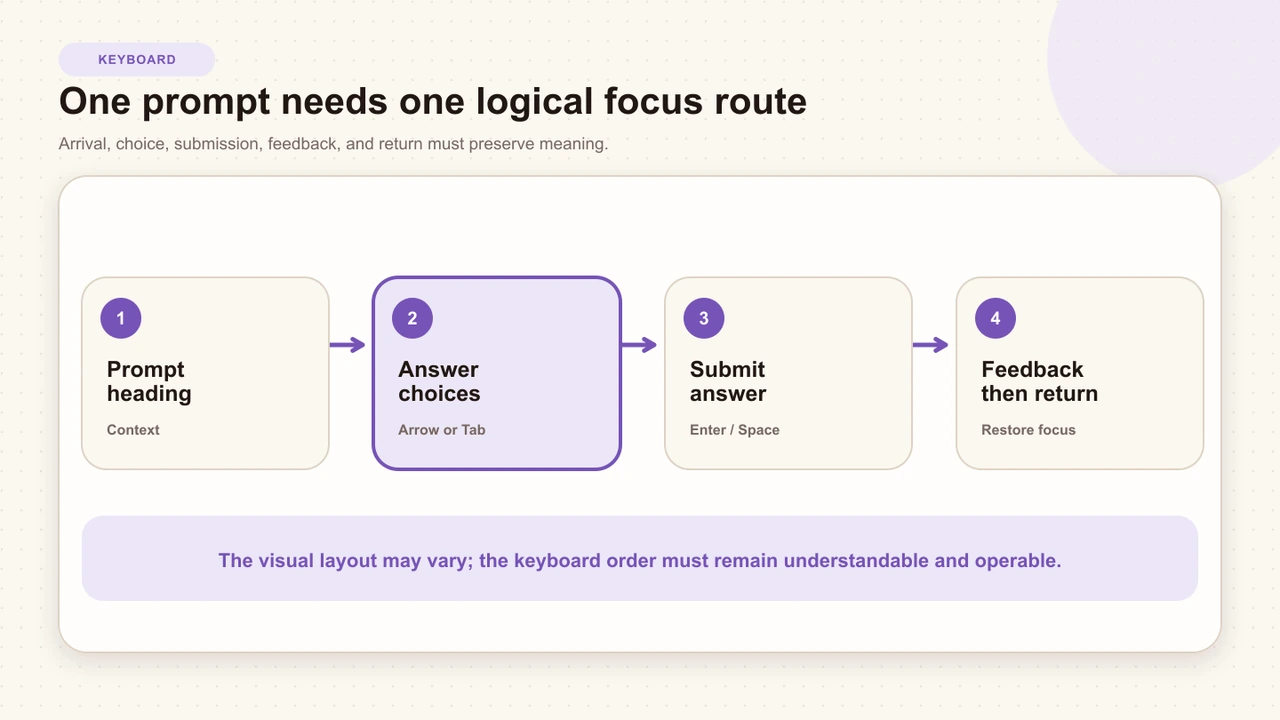
Keyboard access means complete access
WCAG 2.2 Success Criterion 2.1.1 requires functionality to be operable through a keyboard interface unless the underlying function depends on a path of movement, not merely its endpoints. The exception is narrow. A drag gesture may be one input technique while the underlying reorder can still be expressed with Move up and Move down controls.
Define the route before reviewing individual controls: enter the player, play or seek, reach the prompt, answer, correct a mistake, submit, read feedback, close, resume, review, and finish. A lesson is not keyboard accessible if only the first screen works.
Start with native control semantics
Use the native HTML element that matches the action whenever possible. Buttons activate with Enter and Space, links navigate, inputs accept text, and radio controls expose checked state. Rebuilding those semantics on a generic element creates extra work for keyboard behavior, focus, naming, state, and assistive technology.
Visual control only
A styled div responds to click but has no keyboard focus, role, name, or pressed state.
Semantic control
A real button has an accessible name, visible focus, native activation, and an explicit state where needed.
Design one logical focus route
Focus order should preserve meaning and operability. It does not have to reproduce every visual coordinate, but it should reinforce the reading order. For a typical question, place the prompt before the response group, the response group before its action, and feedback before the continue or resume action.
- Do not make decorative cards, icons, or wrappers separate Tab stops.
- Do not place a hidden player control between every answer option.
- Keep supporting links after the primary task unless they are required first.
- Use headings and group labels so the focused choice retains context.
- Return focus to a control that still exists and makes sense after the state change.
Match keys to the interaction pattern
Familiar controls have familiar keyboard models. Follow the WAI-ARIA Authoring Practices pattern for the widget you implement, then test the exact behavior with the browser and assistive technology combinations your organization supports.
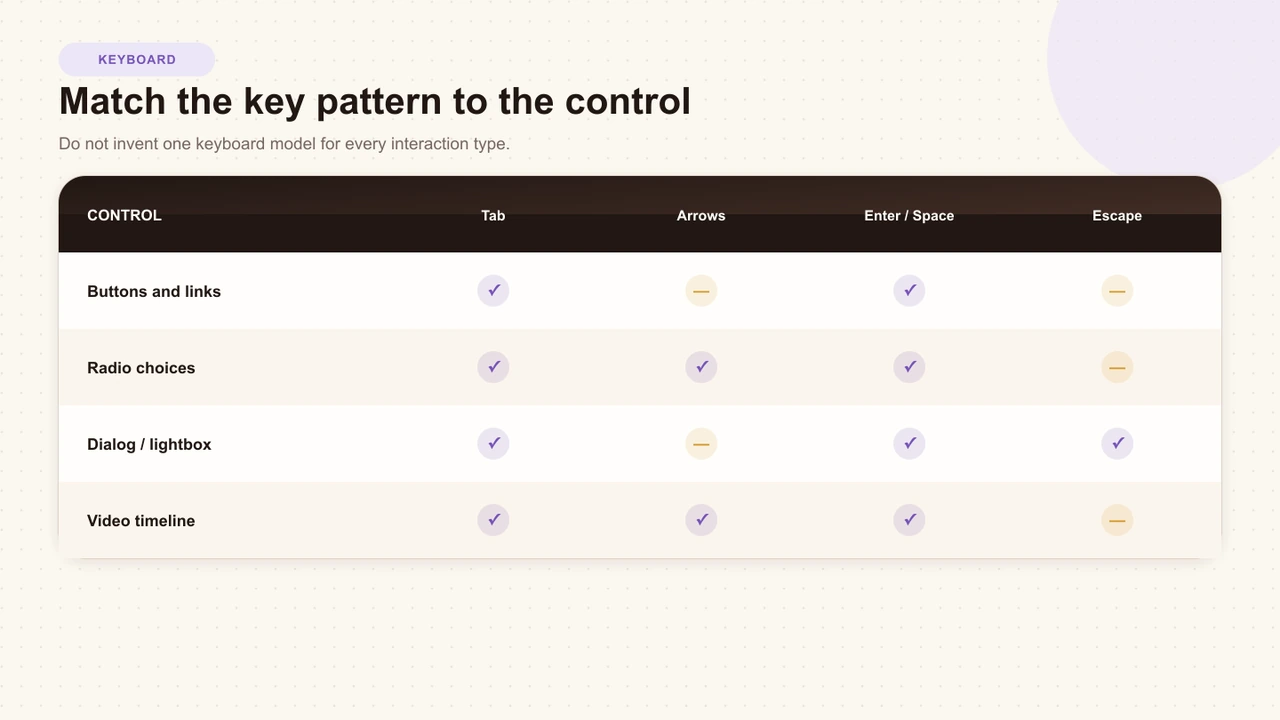
- Button: Tab to it; Enter or Space activates it.
- Link: Tab to it; Enter follows the destination.
- Radio group: one Tab stop; arrow keys move among choices; Space selects where needed.
- Checkbox group: Tab moves between controls; Space toggles each one.
- Dialog: focus enters the surface, stays in the active task, and Escape closes when dismissal is allowed.
- Slider or timeline: arrow keys adjust by a defined step; Home and End may move to limits.
Make focus visible and unobscured
A visible focus indicator must be distinguishable from selection, hover, correctness, and the ordinary border. It also needs to remain at least partially visible when the component receives focus. Sticky controls, prompt backdrops, clipped players, and software keyboards can all hide an otherwise valid indicator.
- Use an offset ring or another cue that does not resemble the selected fill.
- Test every authored accent color against light and dark surfaces.
- Scroll focused fields above the software keyboard without moving focus again.
- Keep focus inside the visible player-owned task, not behind its backdrop.
- Check high zoom and short-height layouts where only part of the player is visible.
Manage focus when a prompt pauses video
A blocking prompt changes the active task. Save the element that triggered or owned the transition, render the prompt, move focus into a useful place, prevent inactive controls from entering the current route, and return focus when the task ends.
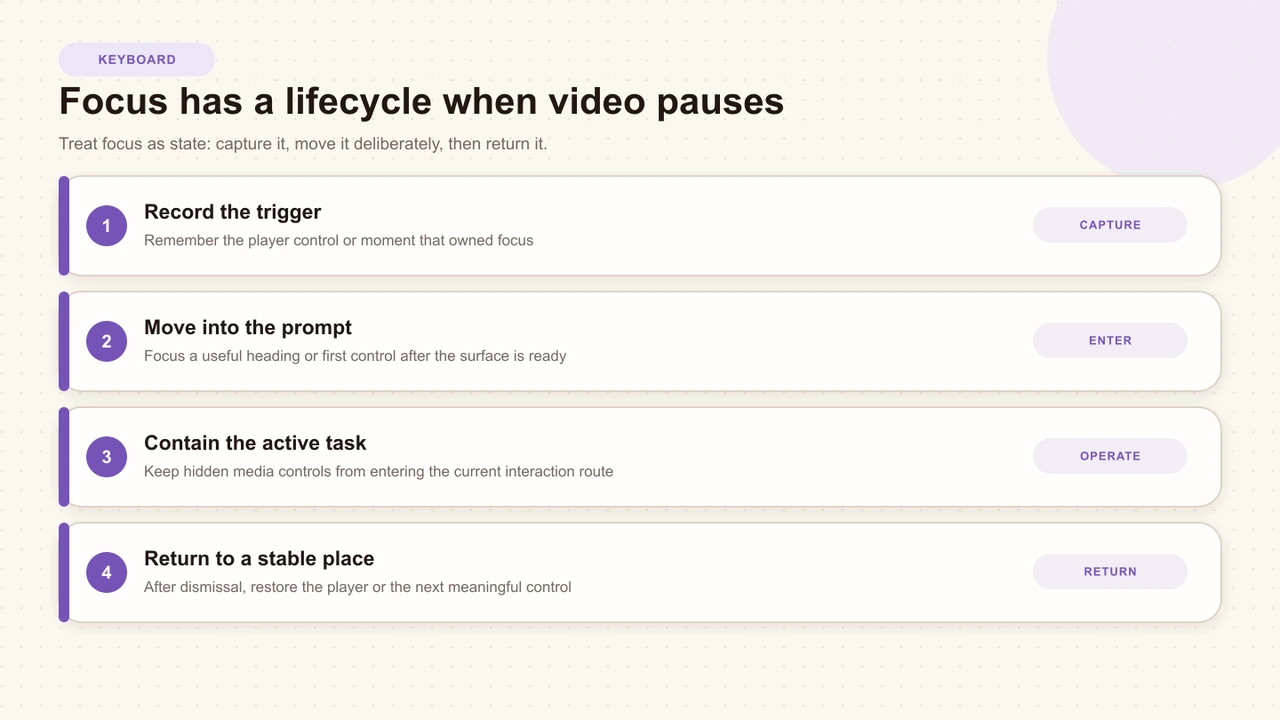
Capture
Remember the current player control or timeline moment before the blocking surface takes ownership.
Enter
After the surface is ready, focus a useful heading, instruction, or first control without stealing focus from a real pointer-initiated text field.
Contain
Keep focus in the active player task while leaving unrelated host-page controls available when the surface is player-contained rather than document-modal.
Return
Restore focus to the saved player control or the next meaningful action after submit, dismissal, feedback, or completion.
Keep player controls and timelines operable
The player is part of the lesson. Play, pause, seek, captions, volume, speed, fullscreen, and interaction markers need accessible names and keyboard behavior. A custom timeline should expose its value, range, and adjustment model instead of requiring a drag.
Dense interaction markers are a special case. If several moments collide, a keyboard user still needs to discover and choose each one. A chooser should identify its count, expose members in an understandable order, support Escape, and return focus to the trigger.
Provide alternatives to pointer gestures
Start with the underlying task. “Put these steps in order” can use Move up and Move down. “Identify the damaged bearing” can expose labeled regions. “Place the marker at a coordinate” can use bounded numeric controls. “Draw your reasoning” may accept a typed description when the path of the stroke is not itself the assessment.
The alternative should be available on the same screen and achieve the same meaningful outcome. A help article, hidden shortcut, or Skip action does not make the task equivalent.
Interactive Video Accessibility
Place keyboard operation inside the complete captions, contrast, timing, touch, spatial-alternative, and recovery audit.
Avoid common keyboard traps
- Duplicate focus: a focusable wrapper contains a focusable button, so the same visual control appears twice.
- Invisible focus: the ring is clipped by overflow or matches the selected border.
- Lost return: a dialog closes and focus falls to the document body.
- Background route: hidden player controls remain tabbable behind a blocking prompt.
- Positive tabindex: manual numbers produce a route that diverges from the document order.
- Focus reset: playback updates remount the prompt and send focus back to its first control.
- Pointer parity gap: a visible drag, resize, or placement action has no button or numeric route.
Run the keyboard-only test
Use the published learner URL, not only the editor preview. Put the mouse out of reach and complete a representative lesson. Then repeat at 200% zoom and in the real embed or LMS frame.
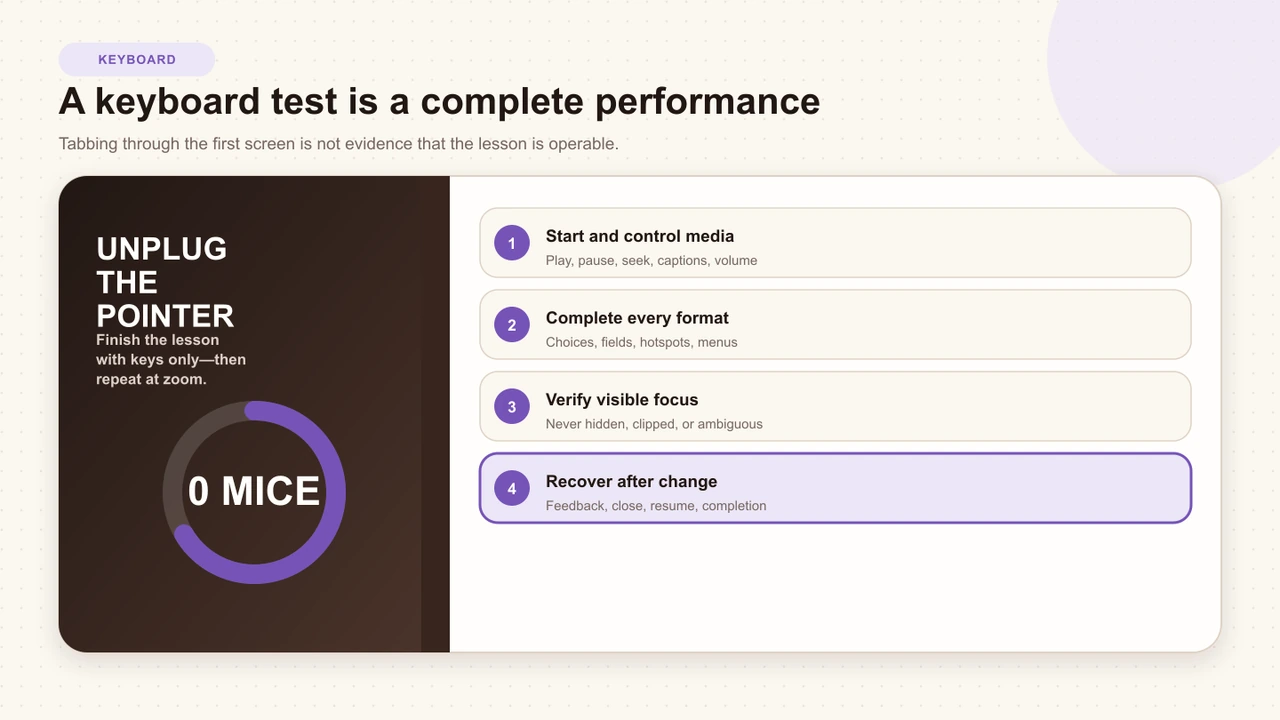
- Start playback, pause, seek, change captions, adjust volume, and enter or exit fullscreen.
- Complete every response format in the lesson, including correction before submission.
- Read feedback, close supporting surfaces, and resume without searching for focus.
- Open timeline review or clustered moments and return to the player.
- Finish, review the result, retake where allowed, and verify start-over creates an understandable new attempt.
Interakly product boundaries
Interakly's player controls and many choice, text, poll, and rating formats provide keyboard routes, focus states, and semantic controls. Spatial, drawing, ordering, map, graph, and dense authoring tools have different boundaries. Check the current Accessibility Statement before assigning a format, and provide an equivalent response where the learner-facing task still depends on a pointer.
Test creator and learner routes separately. A lesson may be operable for a viewer while an authoring drag or canvas still needs a same-screen button, preset, or numeric path. Product capability and the accessibility of the content you author are related but not identical.
Source type does not remove the input requirement. Uploaded video supports Interakly-owned spatial activities, while YouTube supports non-spatial overlays; either learner route still needs operable controls, predictable focus, and an equivalent for any action that otherwise needs a pointer.
Sources and further reading
- WCAG 2.2 Success Criterion 2.1.1: Keyboard — the normative requirement for keyboard operability.
- W3C WAI: Understanding Focus Order — keeping sequential navigation meaningful and operable.
- W3C WAI: Understanding Focus Not Obscured — ensuring the focused component remains visible.
- W3C WAI: Understanding On Focus — predictable behavior when an element receives focus.
- WAI-ARIA Authoring Practices: Radio Group Pattern — established roles, states, and keyboard interactions.
- WAI-ARIA Authoring Practices: Dialog Pattern — focus entry, containment, closing, and return guidance.
FAQ
What does keyboard accessible mean for interactive video?
A learner can start and control playback, reach every interaction, understand focus, enter or select a response, submit, read feedback, close surfaces, review results, and finish the lesson without a mouse or touchscreen.
Should Tab move through every radio option?
A conventional radio group usually has one Tab stop, with arrow keys moving among options and Space selecting. Follow the established pattern for the control instead of making every option behave like an unrelated button.
Where should focus move when a video question appears?
Move focus into the new blocking task after it is ready, usually to a useful heading or first control. Keep the task's controls in a logical order, then return focus to a stable player control when the prompt closes.
Is a visible outline enough for keyboard accessibility?
No. A focus indicator is essential, but the control also needs correct semantics, a useful name, a logical position in the route, keyboard activation, and a result that is communicated without relying on color or sight alone.
How can a drag interaction work from a keyboard?
Expose the underlying operation with controls such as Move up, Move down, choose a position, or bounded numeric adjustment. The keyboard route should achieve the same meaningful result rather than imitating pointer movement.
What is the fastest way to find keyboard problems?
Put the pointer aside and finish the published lesson. Test play, seek, captions, every prompt, feedback, dialogs, timeline review, resume, and completion; repeat at zoom and inside the real embed or LMS destination.
Captions for Learning Videos
Make the media perceivable before testing how learners operate its interactive layer.
Designing Interactive Video for Mobile Learners
Test focus, touch, text entry, player bounds, embeds, and fullscreen at real phone-player sizes.
Interactive Video Best Practices
Connect input access with source choice, timing, question design, feedback, review, and publishing.
Unplug the pointer and finish the lesson
The fastest keyboard audit is a complete learner route: media, prompt, response, feedback, return, review, and completion.
Explore video interactions